Azure Blob Storage Connector Guide
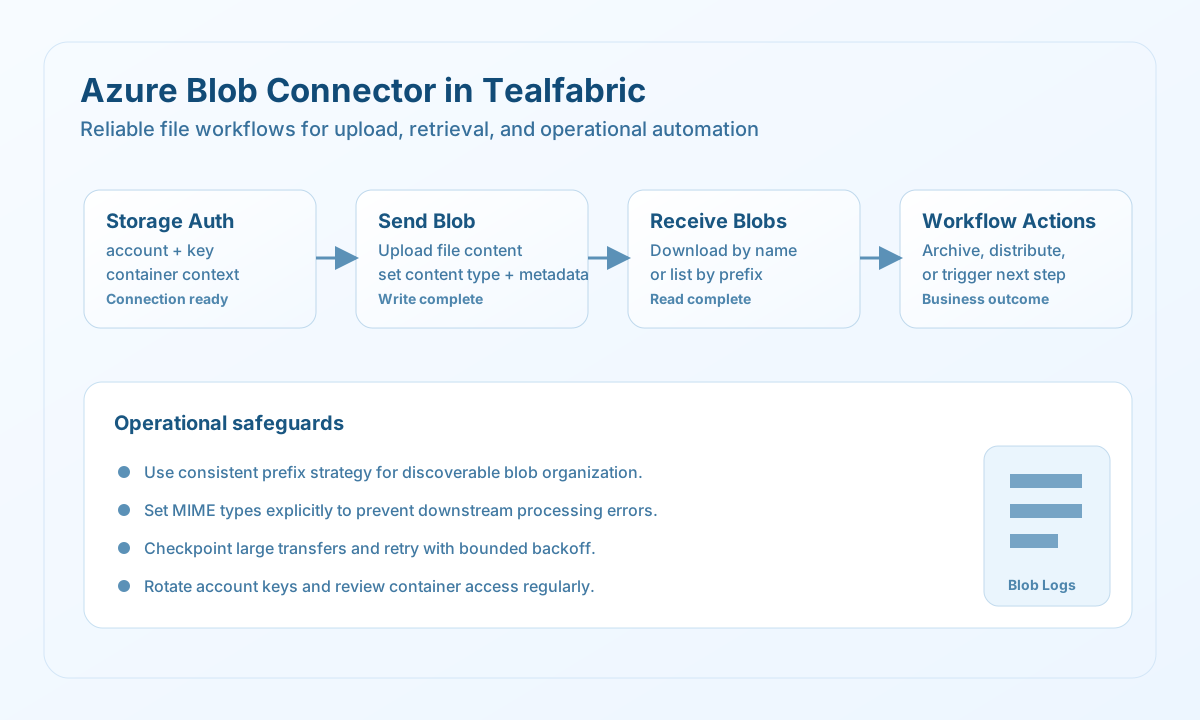
The Azure Blob Storage connector allows Tealfabric workflows to store and retrieve files in Azure containers for document pipelines, export archives, and operational assets. It is designed for workflows that need predictable object storage access with metadata support.
Document information
| Field | Value |
|---|---|
| Canonical URL | /docs/04_connecting-systems/connectors/a/azure-blob |
| Version (published date) | 2026-05-08 |
| Tags | connectors, reference, azure-blob |
| Connector ID | azure-blob-1.0.0 |
When to use this connector
Use this connector when workflows must persist files to object storage or fetch files for downstream processing. Common patterns include storing generated reports, archiving payload snapshots, and retrieving artifacts for validation or distribution. The connector works best when naming conventions and container structure are defined consistently across teams.
Prerequisites
Before configuring the connector, create the target blob container and confirm your storage account key has required access permissions. Decide on blob naming rules, including prefix structure for environment and domain grouping. Validate connectivity from the runtime environment to Azure endpoints before enabling production jobs.
Configuration
Store these values in the integration profile:
account_name(required): Azure storage account name.account_key(required): Azure storage account key.container_name(required): Existing target container name (3–63 lowercase alphanumeric characters; hyphens allowed).timeout_seconds(optional): Request timeout in seconds, default30.
send accepts blob aliases blob_name, key, or path; content aliases content, body, or data; and optional file_path/file for host-local binary uploads.
Upload blobs with send
Use send to upload text or binary content. Set content_type (or mime_type) explicitly when downstream clients need a specific MIME type. When file_path is used, the connector reads raw bytes from the host filesystem.
const baseUrl = "https://api.example.com/api/v1";
const tenantId = "<TENANT_ID>";
const apiKey = "<API_KEY>";

type BlobWriteResult = {
  message_count: number;
  blob_name: string;
  container: string;
  etag: string | null;
  size: number;
};

async function uploadReport(integrationId: string, csvText: string): Promise<BlobWriteResult> {
  const response = await fetch(
    `${baseUrl}/integrations/${encodeURIComponent(integrationId)}/execute`,
    {
      method: "POST",
      headers: {
        "X-API-Key": apiKey,
        "X-Tenant-ID": tenantId,
        "Content-Type": "application/json",
      },
      body: JSON.stringify({
        operation: "send",
        blob_name: "exports/2026/05/report.csv",
        content: csvText,
        content_type: "text/csv",
      }),
    }
  );
  if (!response.ok) throw new Error(`Request failed: ${response.status}`);
  const payload = (await response.json()) as { success?: boolean; data?: BlobWriteResult };
  if (!payload.success || !payload.data) throw new Error("Blob upload failed");
  return payload.data;
}
curl -X POST "https://api.example.com/api/v1/integrations/<ENTITY_ID>/execute" \
-H "X-API-Key: <API_KEY>" \
-H "X-Tenant-ID: <TENANT_ID>" \
-H "Content-Type: application/json" \
-d '{
"operation": "send",
"blob_name": "exports/2026/05/report.csv",
"content": "id,name\n1,alpha",
"content_type": "text/csv"
}'
{
  "success": true,
  "data": {
    "message_count": 1,
    "blob_name": "exports/2026/05/report.csv",
    "container": "workflow-exports",
    "etag": "\"0x8DE12345A1BCDEF\"",
    "size": 15
  }
}
Retrieve and list blobs with receive
Use receive with blob_name (or key/path) for direct downloads, or omit the blob name and pass prefix to list blobs. Listing supports max_results or limit (default 5000).
{
  "operation": "receive",
  "prefix": "exports/2026/05/",
  "max_results": 25
}
List response envelope:
{
  "success": true,
  "data": {
    "message_count": 1,
    "blobs": [
      {
        "name": "exports/2026/05/report.csv",
        "size": 58212,
        "last_modified": "2026-05-08T13:06:10Z",
        "etag": "\"0x8DE12345A1BCDEF\"",
        "content_type": "text/csv"
      }
    ],
    "next_marker": null
  }
}
Download response envelope:
{
  "success": true,
  "data": {
    "message_count": 1,
    "blob_name": "exports/2026/05/report.csv",
    "content": "id,name\n1,alpha",
    "content_type": "text/csv",
    "size": 15
  }
}
Delete blobs with delete
{
  "operation": "delete",
  "blob_name": "exports/2026/05/report.csv"
}
{
  "success": true,
  "data": {
    "message_count": 1,
    "blob_name": "exports/2026/05/report.csv",
    "deleted": true
  }
}
Test connectivity with test
test validates required configuration and probes container metadata (GET ?comp=metadata).
{
  "success": true,
  "data": {
    "message": "Azure Blob Storage connection test successful",
    "details": {
      "account": "mystorageaccount",
      "container": "workflow-exports",
      "endpoint": "https://mystorageaccount.blob.core.windows.net"
    }
  }
}
Batch operations with batch
batch runs multiple send, receive, or delete operations sequentially. Each item may use operation or type (default send) and optional nested data.
{
  "operation": "batch",
  "operations": [
    { "operation": "send", "data": { "blob_name": "a.txt", "content": "hello" } },
    { "operation": "delete", "data": { "blob_name": "old/a.txt" } }
  ]
}
Reliability guidance
Use consistent prefixes so files can be discovered and audited across environments. For large transfers, split operations and checkpoint progress to keep retries bounded and observable. Monitor storage usage, lifecycle rules, and access-key rotation to maintain both cost control and security posture.