Google Cloud Integrations Guide
Document information
- Canonical URL:
/docs/04_connecting-systems/15_google-cloud-integrations - Version:
2026-05-08 - Tags:
integrations,gcp,cloud
This guide explains how to connect Google Cloud and Google Workspace services to Tealfabric using OAuth credentials. It focuses on production-safe setup for common services such as Gmail, Google Drive, and Google Calendar, with practical guidance for scopes, security, and troubleshooting.
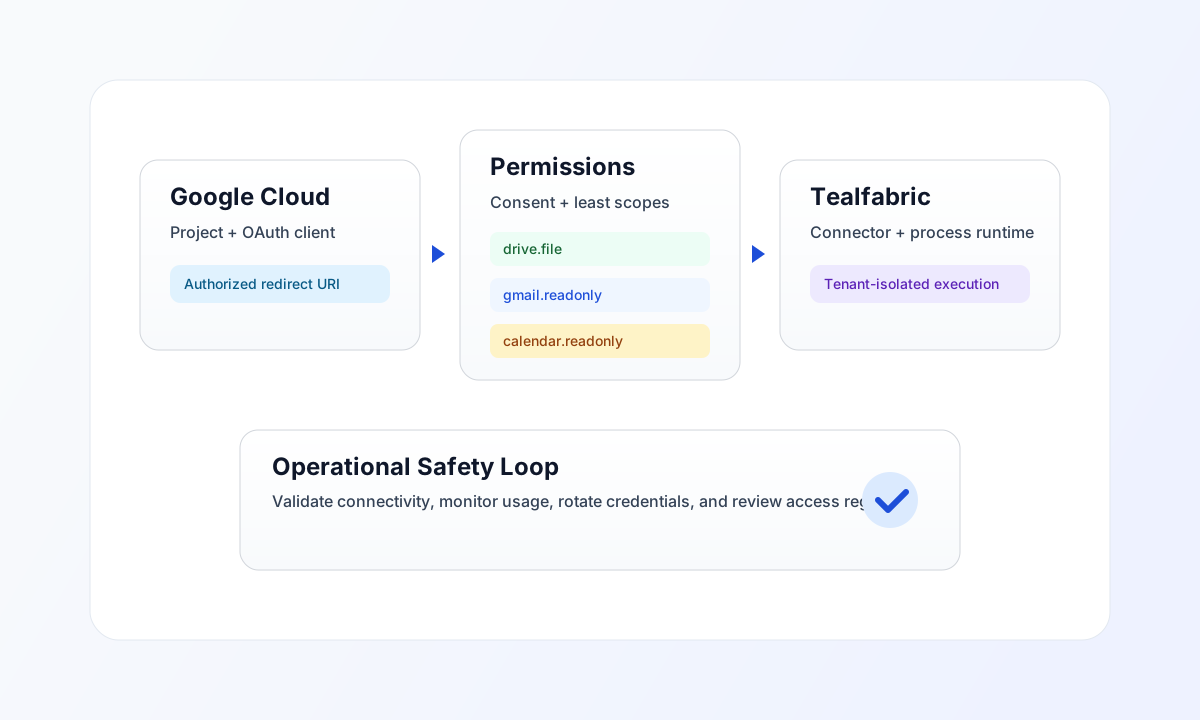
Plan the integration before configuration
Start by confirming which Google services your process needs and who owns administrator approval in your Google Workspace environment. This avoids over-scoping and helps you configure only the APIs and OAuth permissions required for your actual automation use case.
A reliable setup usually includes one dedicated project for Tealfabric integration, one OAuth client for each environment, and clearly documented ownership for key rotation and consent-screen updates.
Configure Google Cloud for OAuth access
Create or select a Google Cloud project, enable required APIs, and configure an OAuth consent screen before creating OAuth credentials. For Tealfabric web-based OAuth flows, use a web application OAuth client and make sure authorized redirect URIs exactly match your Tealfabric callback path.
Use the most restrictive scopes that still satisfy your workflow. For example, drive.file is usually safer than broad drive-wide access, and read-only scopes are preferred when write access is not required.
Common redirect URI:
https://tealfabric.io/api/v1/oauth2/callback
Validate Google API connectivity in code
After connector authorization, validate the integration path with a simple authenticated API call pattern. The examples below show aligned request behavior across TypeScript and JavaScript.
const baseUrl = "https://api.example.com/api/v1";
const tenantId = "<TENANT_ID>";
const apiKey = "<API_KEY>";

type Entity = {
  entity_id: string;
  name: string;
  status: string;
};

async function fetchEntity(entityId: string): Promise<Entity> {
  const response = await fetch(`${baseUrl}/entities?id=${encodeURIComponent(entityId)}`, {
    method: "GET",
    headers: {
      "X-API-Key": apiKey,
      "X-Tenant-ID": tenantId,
      "Content-Type": "application/json",
    },
  });
  if (!response.ok) throw new Error(`Request failed: ${response.status}`);
  const payload = (await response.json()) as { data?: Entity };
  if (!payload.data) throw new Error("Missing entity payload");
  return payload.data;
}
Run a quick integration health check
Use this request pattern to confirm your Tealfabric-side credentials and tenant context are working after OAuth setup.
curl -X GET "https://api.example.com/api/v1/entities?id=<ENTITY_ID>" \
  -H "X-API-Key: <API_KEY>" \
  -H "X-Tenant-ID: <TENANT_ID>" \
  -H "Content-Type: application/json"
{
  "success": true,
  "data": {
    "entity_id": "<ENTITY_ID>",
    "name": "Example Entity",
    "status": "active"
  }
}
Secure and maintain the integration
Use dedicated integration identities, keep OAuth scopes minimal, and store credentials in a secure secret-management workflow. Apply separate OAuth clients for development, staging, and production so operational changes in one environment do not affect others.
If you encounter redirect_uri_mismatch, verify exact URI matching first, including protocol and path. If access fails, re-check enabled APIs, granted scopes, and token authorization state before regenerating credentials.
For deeper connector patterns, continue with Integration connectors and API key management.