Microsoft 365 services integrations guide
Document information
- Canonical URL:
/docs/04_connecting-systems/25_microsoft-365-integrations - Version:
2026-05-08 - Tags:
integrations,microsoft-365,cloud
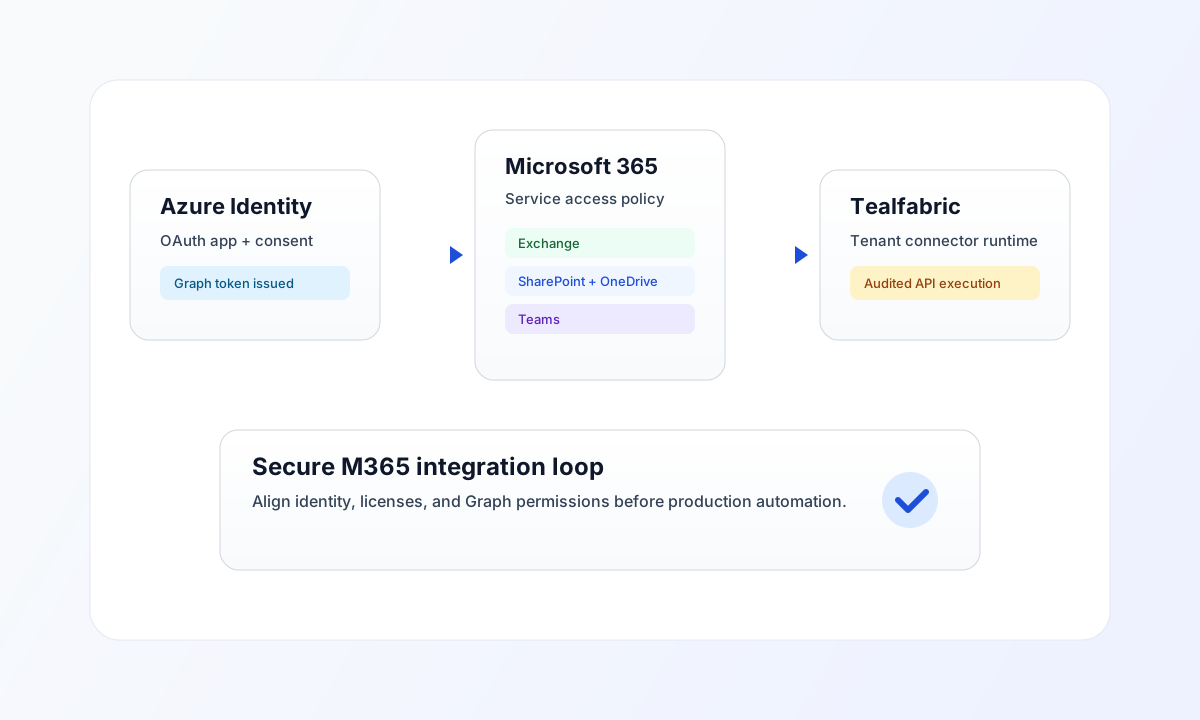
This guide explains how to connect Microsoft 365 services to Tealfabric for secure production use. It focuses on service readiness in Microsoft 365 after Azure authentication is in place, including licenses, permissions, scopes, and operational checks for Exchange Online, SharePoint, OneDrive, and Teams.
Start with identity and service readiness
Microsoft 365 integrations depend on Azure app registration and Microsoft Graph permissions. Before continuing, complete the Azure setup in Microsoft Azure Cloud Integrations Guide, including OAuth configuration and required app credentials.
After identity setup, confirm that the Microsoft 365 tenant has active licenses for the services your workflows use. A dedicated integration account with least-privilege access usually gives better control, clearer audit trails, and simpler incident response.
Configure Microsoft 365 services for integration
Use Microsoft 365 admin centers to align service policies with your automation goals. For Exchange, confirm mailbox access and modern authentication behavior. For SharePoint and OneDrive, validate site and file permissions plus sharing restrictions. For Teams, verify app and messaging policies alongside Graph scopes.
Scope selection should match task requirements closely. For example, prefer Sites.Read.All over write scopes unless updates are required, and restrict chat or mailbox permissions to only what your process needs. This reduces security exposure while keeping integrations functional.
Validate connector access in code
The examples below show a consistent Microsoft Graph request pattern from Tealfabric-connected code across TypeScript and JavaScript.
const graphBaseUrl = "https://graph.microsoft.com/v1.0";
const tenantId = "<TENANT_ID>";
const apiKey = "<API_KEY>";

type Site = {
  id: string;
  displayName: string;
  webUrl: string;
};

async function fetchSharePointSite(siteId: string): Promise<Site> {
  const response = await fetch(`${graphBaseUrl}/sites/${encodeURIComponent(siteId)}`, {
    method: "GET",
    headers: {
      "X-API-Key": apiKey,
      "X-Tenant-ID": tenantId,
      "Content-Type": "application/json",
    },
  });
  if (!response.ok) throw new Error(`Request failed: ${response.status}`);
  const payload = (await response.json()) as Site;
  if (!payload.id) throw new Error("Missing site payload");
  return payload;
}
API verification request
Use this request format to verify that your connector credentials, tenant context, and Graph permission grants are working.
curl -X GET "https://graph.microsoft.com/v1.0/sites/<ENTITY_ID>" \
  -H "X-API-Key: <API_KEY>" \
  -H "X-Tenant-ID: <TENANT_ID>" \
  -H "Content-Type: application/json"
{
  "id": "<ENTITY_ID>",
  "displayName": "Operations Site",
  "webUrl": "https://contoso.sharepoint.com/sites/operations"
}
Security and troubleshooting focus
Keep service account permissions narrow, rotate secrets regularly, and monitor Microsoft 365 audit logs for unexpected access patterns. If you see access denied or missing-resource errors, verify three things first: assigned licenses, Graph scopes with admin consent, and service-level permissions in the relevant admin center.
For throttling or intermittent API failures, apply exponential backoff and queue non-urgent operations asynchronously to avoid connector instability. Continue with Integration connectors for implementation patterns and WebApp async process trigger when inbound callbacks are required.