Squarespace API Connector Guide
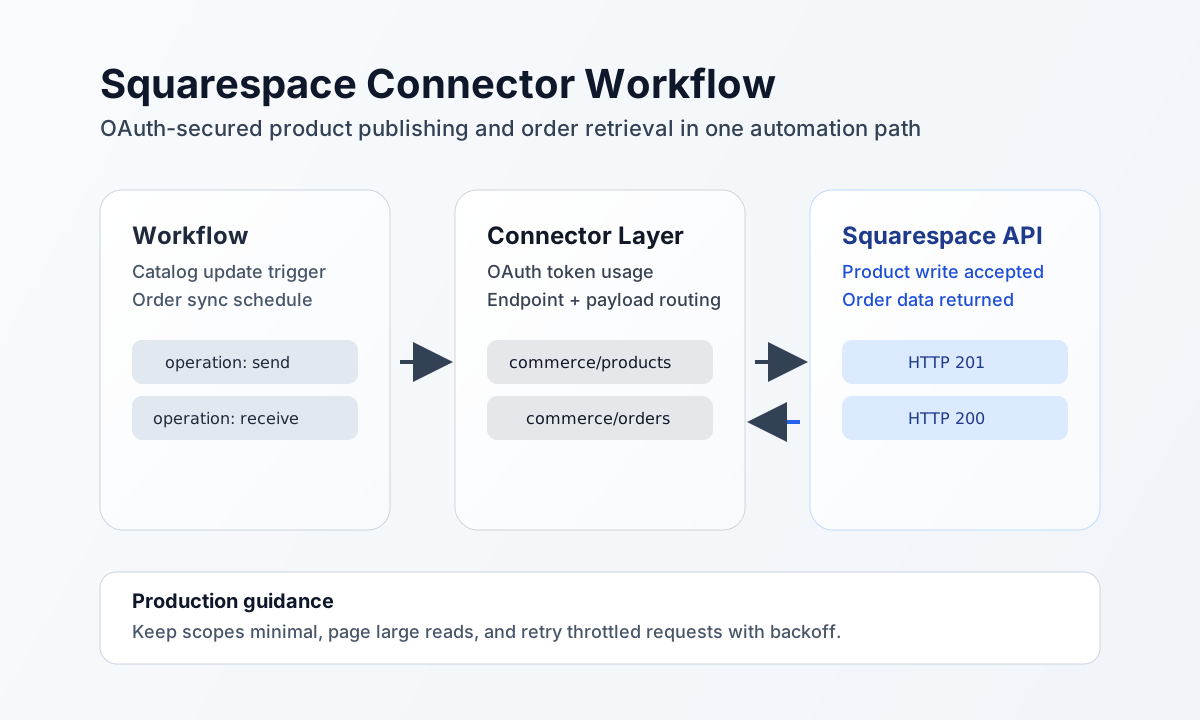
The Squarespace connector lets Tealfabric workflows automate commerce and content actions such as product publishing, order retrieval, and blog updates. It is designed for teams that need reliable OAuth-based integration between Squarespace and operational systems.
Document information
| Field | Value |
|---|---|
| Canonical URL | /docs/04_connecting-systems/connectors/s/squarespace |
| Version (published date) | 2026-05-08 |
| Tags | connectors, reference, squarespace |
| Connector ID | squarespace-1.0.0 |
Configure OAuth access
Set client_id, client_secret, and redirect_uri from your Squarespace developer application, then complete authorization to obtain access_token and refresh_token. Ensure your redirect URL matches exactly between the connector configuration and Squarespace app settings so token exchange succeeds.
Set scope to the least privilege required for your use case and tune timeout_seconds for expected request latency. Run test after setup to validate OAuth app configuration (client_id, client_secret, redirect_uri) and access token health before running scheduled workflows. Non-test operations require a valid access_token but do not re-validate OAuth app credentials on every call.
Create or update resources with send
Use send for write operations such as creating commerce products or publishing content objects. Keep payloads aligned with Squarespace endpoint requirements to avoid schema errors and rejected writes.
const baseUrl = "https://api.example.com/api/v1";
const tenantId = "<TENANT_ID>";
const apiKey = "<API_KEY>";

async function createProduct(integrationId: string) {
  const response = await fetch(`${baseUrl}/integrations/${encodeURIComponent(integrationId)}/execute`, {
    method: "POST",
    headers: {
      "X-API-Key": apiKey,
      "X-Tenant-ID": tenantId,
      "Content-Type": "application/json",
    },
    body: JSON.stringify({
      operation: "send",
      endpoint: "commerce/products",
      method: "POST",
      data: {
        name: "Workflow Created Product",
        type: "PHYSICAL",
        variants: [
          {
            sku: "SKU-1001",
            pricing: {
              basePrice: {
                value: "99.99",
                currency: "USD"
              }
            },
            stock: {
              quantity: 50
            }
          }
        }
      }
    }),
  });
  if (!response.ok) throw new Error(`Request failed: ${response.status}`);
  return response.json();
}
curl -X POST "https://api.example.com/api/v1/integrations/<ENTITY_ID>/execute" \
-H "X-API-Key: <API_KEY>" \
-H "X-Tenant-ID: <TENANT_ID>" \
-H "Content-Type: application/json" \
-d '{
"operation": "send",
"endpoint": "commerce/products",
"method": "POST",
"data": {
"name": "Workflow Created Product",
"type": "PHYSICAL",
"variants": [
{
"sku": "SKU-1001",
"pricing": {
"basePrice": {
"value": "99.99",
"currency": "USD"
}
},
"stock": {
"quantity": 50
}
}
]
}
}'
{
  "success": true,
  "data": {
    "message_count": 1,
    "data": {
      "id": "<ENTITY_ID>",
      "name": "Workflow Created Product",
      "type": "PHYSICAL"
    },
    "response": {
      "id": "<ENTITY_ID>",
      "name": "Workflow Created Product",
      "type": "PHYSICAL"
    }
  }
}
Retrieve resources with receive
Use receive for incremental syncs, product catalog reads, or order ingestion into downstream systems. Include query filters such as time windows and limits so workflows process only the records needed for the current run.
const baseUrl = "https://api.example.com/api/v1";
const tenantId = "<TENANT_ID>";
const apiKey = "<API_KEY>";

async function listRecentOrders(integrationId: string) {
  const response = await fetch(`${baseUrl}/integrations/${encodeURIComponent(integrationId)}/execute`, {
    method: "POST",
    headers: {
      "X-API-Key": apiKey,
      "X-Tenant-ID": tenantId,
      "Content-Type": "application/json",
    },
    body: JSON.stringify({
      operation: "receive",
      endpoint: "commerce/orders",
      query: {
        modifiedAfter: "2026-01-01T00:00:00Z",
        limit: 25
      }
    }),
  });
  if (!response.ok) throw new Error(`Request failed: ${response.status}`);
  return response.json();
}
curl -X POST "https://api.example.com/api/v1/integrations/<ENTITY_ID>/execute" \
-H "X-API-Key: <API_KEY>" \
-H "X-Tenant-ID: <TENANT_ID>" \
-H "Content-Type: application/json" \
-d '{
"operation": "receive",
"endpoint": "commerce/orders",
"query": {
"modifiedAfter": "2026-01-01T00:00:00Z",
"limit": 25
}
}'
{
  "success": true,
  "data": {
    "message_count": 1,
    "data": [
      {
        "id": "<ENTITY_ID>",
        "customerEmail": "buyer@example.com",
        "fulfillmentStatus": "PENDING"
      }
    ],
    "total_size": 1
  }
}
Operate safely at scale
Squarespace APIs can return rate-limit responses during high-volume activity, especially in batch workflows. Use retry with backoff, process pagination cursors when available, and keep request sizes small to improve reliability.
OAuth failures usually indicate expired or revoked tokens, mismatched redirect settings, or missing scopes. Keep tokens in secure storage, avoid logging sensitive credentials, and re-run test after OAuth updates so integration health stays visible.
Related resources
For endpoint details and scope guidance, see the Squarespace Developer documentation and the Squarespace OAuth overview.