Google Drive connector
Document information
- Canonical URL:
/docs/04_connecting-systems/connectors/g/google-drive - Version:
2026-05-08 - Tags:
connectors,reference,google-drive
Use this connector to access Google Drive from Tealfabric for common file workflows such as upload, metadata lookup, and folder listing. This page focuses on secure OAuth2 setup, practical request patterns, and reliable handling of Shared Drives.
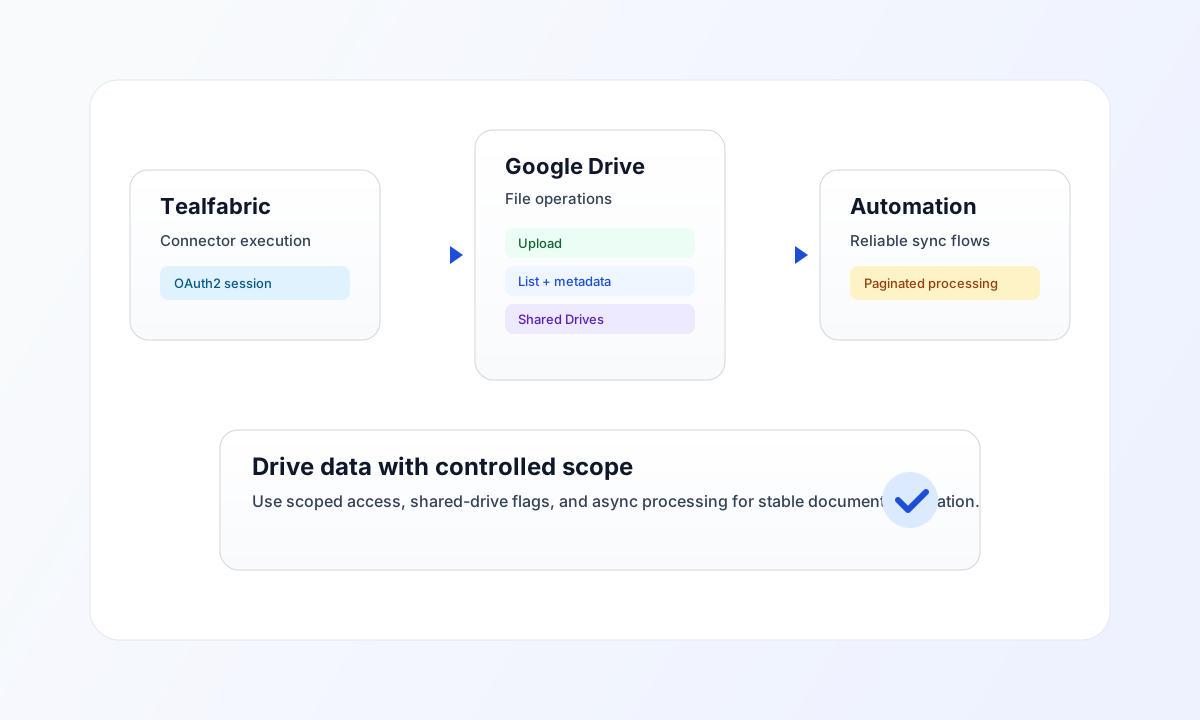
Connector configuration
Use connector ID google-drive-1.0.0 and configure OAuth2 credentials (client_id, client_secret, and redirect_uri) in integration settings. Keep tokens secure and rotate credentials according to your standard access policy.
If you work with Shared Drives, enable include_all_drives so list and lookup operations include shared content contexts. The default API base and timeout values usually work without changes unless your workload has specific latency requirements.
Common Google Drive patterns
Use send for uploads and file creation, and receive for listing or metadata retrieval. For large datasets, combine pagination filters (pageSize, offset/token patterns) with asynchronous processing so long-running operations do not block your pipeline.
When querying shared spaces, include Drive-specific flags such as supportsAllDrives, includeItemsFromAllDrives, and driveId where required. This avoids incomplete results and permission-related confusion.
Code examples
The examples below show an aligned pattern for listing Google Drive files through a connector execution call.
const baseUrl = "https://api.example.com/api/v1";
const tenantId = "<TENANT_ID>";
const apiKey = "<API_KEY>";

type DriveFile = { id: string; name: string; mimeType?: string };

async function listDriveFiles(integrationId: string): Promise<DriveFile[]> {
  const response = await fetch(`${baseUrl}/integrations/${encodeURIComponent(integrationId)}/execute`, {
    method: "POST",
    headers: {
      "X-API-Key": apiKey,
      "X-Tenant-ID": tenantId,
      "Content-Type": "application/json",
    },
    body: JSON.stringify({
      operation: "receive",
      endpoint: "files",
      query: {
        q: "trashed = false",
        pageSize: 20,
        fields: "files(id,name,mimeType)",
      },
    }),
  });
  if (!response.ok) throw new Error(`Request failed: ${response.status}`);
  const payload = (await response.json()) as { data?: DriveFile[] };
  if (!payload.data) throw new Error("Missing file list payload");
  return payload.data;
}
API request example
Use this request format to retrieve active files from Google Drive through a configured integration.
curl -X POST "https://api.example.com/api/v1/integrations/<ENTITY_ID>/execute" \
  -H "X-API-Key: <API_KEY>" \
  -H "X-Tenant-ID: <TENANT_ID>" \
  -H "Content-Type: application/json" \
  -d '{
    "operation": "receive",
    "endpoint": "files",
    "query": {
      "q": "trashed = false",
      "pageSize": 20,
      "fields": "files(id,name,mimeType)"
    }
  }'
{
  "success": true,
  "data": [
    {
      "id": "<ENTITY_ID>",
      "name": "Quarterly-report.pdf",
      "mimeType": "application/pdf"
    }
  ],
  "message_count": 1
}
Reliability and troubleshooting
If calls return 401 or 403, verify token validity, OAuth scopes, and whether the Drive API is enabled in your Google project. If Shared Drive files are missing, confirm both connector-level and query-level all-drives flags are set.
For very large file transfer workloads, use queue-based async execution and monitor retries to reduce timeout risk. Continue with Google Cloud integrations and Integration workers guide for environment and scaling patterns.