Google Analytics Connector Guide
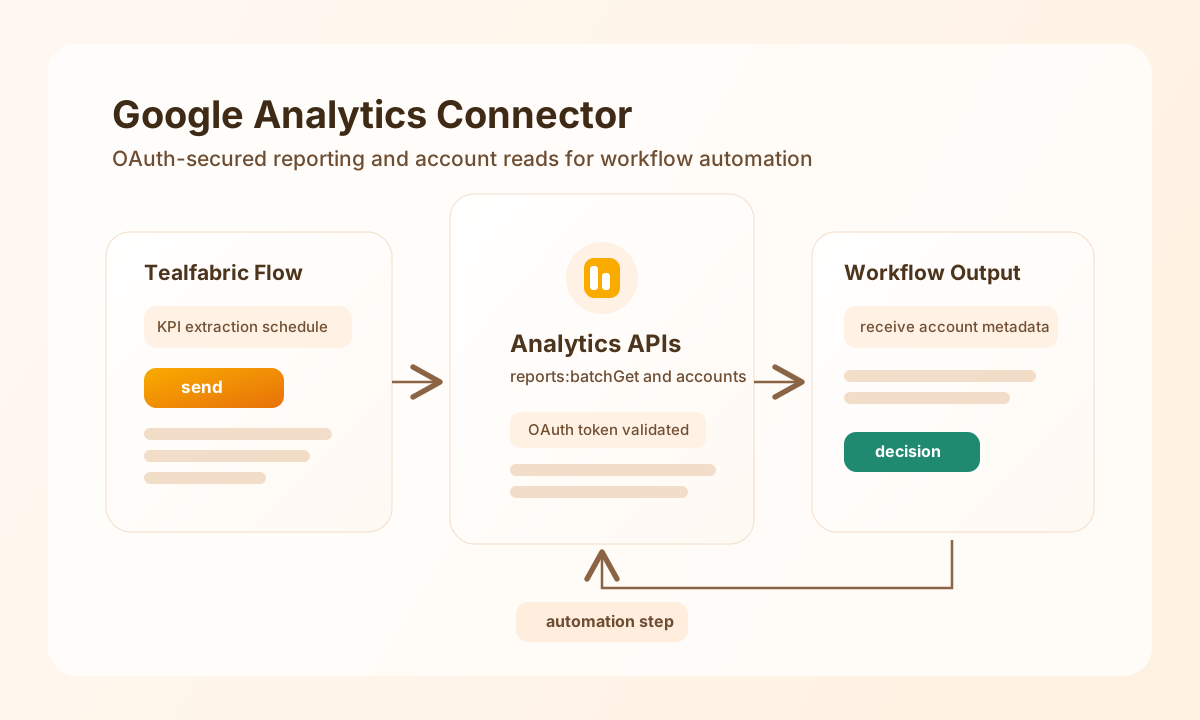
The Google Analytics connector helps you pull reporting and management data into Tealfabric workflows through OAuth 2.0. It is useful when you want scheduled performance snapshots, KPI alerts, or downstream automation based on analytics trends.
Document information
| Field | Value |
|---|---|
| Canonical URL | /docs/04_connecting-systems/connectors/g/google-analytics |
| Version (published date) | 2026-05-08 |
| Tags | connectors, reference, google-analytics |
| Connector ID | google-analytics-1.0.0 |
Configure OAuth access
Set client_id, client_secret, and redirect_uri from your Google Cloud OAuth app, and make sure the authorized account can access the analytics resources you plan to query. These credentials are required for both reporting calls and management reads.
Use access_token and refresh_token for persistent access, and set scope so it includes the read permissions your reports require. Keep timeout_seconds aligned with expected report size, then run test to verify connectivity before production scheduling.
Run reporting queries with send
Use send with reports:batchGet when you need analytics metrics inside a workflow step. This pattern is commonly used to detect traffic changes, publish weekly KPI summaries, or trigger investigation workflows.
const baseUrl = "https://api.example.com/api/v1";
const tenantId = "<TENANT_ID>";
const apiKey = "<API_KEY>";

async function fetchWeeklySessions(integrationId: string) {
  const response = await fetch(`${baseUrl}/integrations/${encodeURIComponent(integrationId)}/execute`, {
    method: "POST",
    headers: {
      "X-API-Key": apiKey,
      "X-Tenant-ID": tenantId,
      "Content-Type": "application/json",
    },
    body: JSON.stringify({
      operation: "send",
      endpoint: "reports:batchGet",
      method: "POST",
      data: {
        reportRequests: [
          {
            viewId: "<ENTITY_ID>",
            dateRanges: [{ startDate: "7daysAgo", endDate: "today" }],
            metrics: [{ expression: "ga:sessions" }, { expression: "ga:users" }],
            dimensions: [{ name: "ga:date" }]
          }
        }
      }
    }),
  });
  if (!response.ok) throw new Error(`Request failed: ${response.status}`);
  return response.json();
}
curl -X POST "https://api.example.com/api/v1/integrations/<ENTITY_ID>/execute" \
-H "X-API-Key: <API_KEY>" \
-H "X-Tenant-ID: <TENANT_ID>" \
-H "Content-Type: application/json" \
-d '{
"operation": "send",
"endpoint": "reports:batchGet",
"method": "POST",
"data": {
"reportRequests": [
{
"viewId": "<ENTITY_ID>",
"dateRanges": [{"startDate": "7daysAgo", "endDate": "today"}],
"metrics": [{"expression": "ga:sessions"}, {"expression": "ga:users"}],
"dimensions": [{"name": "ga:date"}]
}
]
}
}'
{
  "success": true,
  "data": {
    "reports": [
      {
        "columnHeader": {
          "dimensions": ["ga:date"],
          "metricHeader": {
            "metricHeaderEntries": [
              {"name": "ga:sessions"},
              {"name": "ga:users"}
            ]
          }
        }
      }
    ]
  }
}
Read account metadata with receive
Use receive with use_management_api: true to list account-level metadata and support onboarding or validation workflows. This is helpful when your workflow must verify access before scheduling report extraction jobs.
const baseUrl = "https://api.example.com/api/v1";
const tenantId = "<TENANT_ID>";
const apiKey = "<API_KEY>";

async function listAnalyticsAccounts(integrationId: string) {
  const response = await fetch(`${baseUrl}/integrations/${encodeURIComponent(integrationId)}/execute`, {
    method: "POST",
    headers: {
      "X-API-Key": apiKey,
      "X-Tenant-ID": tenantId,
      "Content-Type": "application/json",
    },
    body: JSON.stringify({
      operation: "receive",
      endpoint: "accounts",
      use_management_api: true,
      query: { "max-results": 25 }
    }),
  });
  if (!response.ok) throw new Error(`Request failed: ${response.status}`);
  return response.json();
}
curl -X POST "https://api.example.com/api/v1/integrations/<ENTITY_ID>/execute" \
-H "X-API-Key: <API_KEY>" \
-H "X-Tenant-ID: <TENANT_ID>" \
-H "Content-Type: application/json" \
-d '{
"operation": "receive",
"endpoint": "accounts",
"use_management_api": true,
"query": {
"max-results": 25
}
}'
{
  "success": true,
  "data": {
    "items": [
      {
        "id": "<ENTITY_ID>",
        "name": "Example Analytics Account"
      }
    ],
    "totalResults": 1
  }
}
Production guidance
Most runtime failures come from expired OAuth tokens, missing scopes, or invalid analytics resource IDs. Review permissions whenever access changes and keep refresh tokens available so workflows can recover from token expiry automatically.
For high-volume reporting, avoid large date windows in every run and add retry backoff for temporary rate-limit responses. Smaller queries with predictable scheduling usually deliver more reliable automation.
Related resources
For endpoint details and authorization behavior, refer to the Google Analytics Reporting API reference and the Google Analytics Management API reference.