Google Cloud Connector Guide
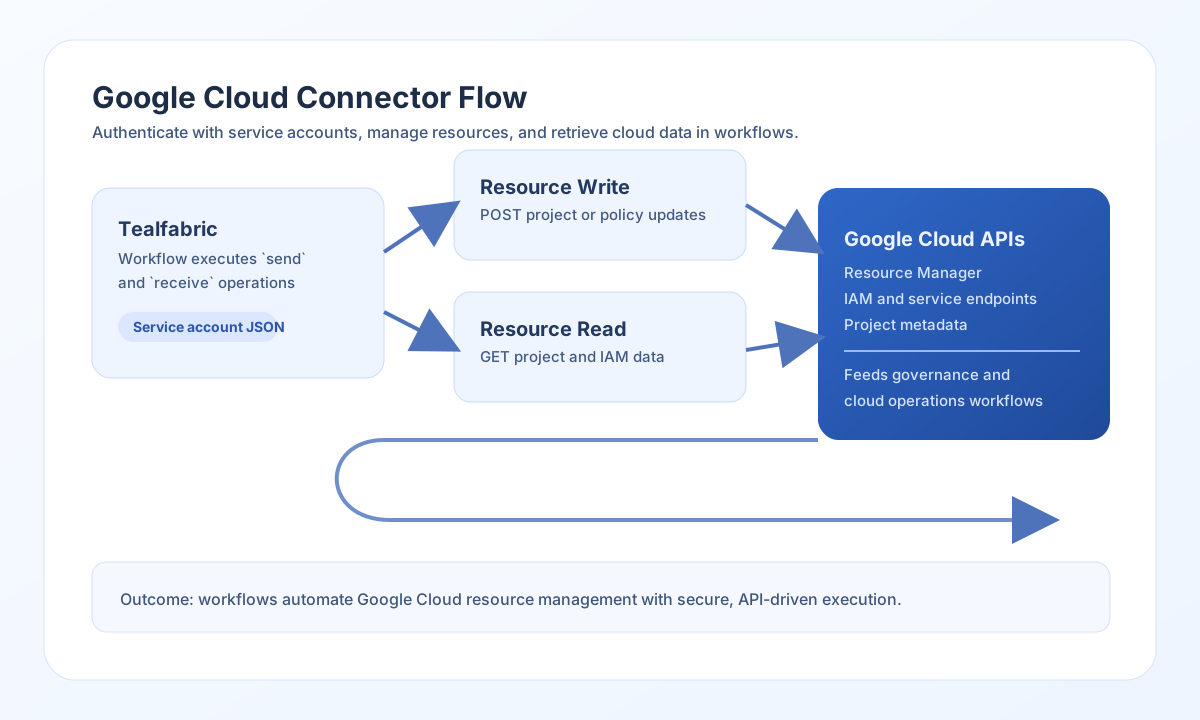
The Google Cloud connector (google-cloud-1.0.0) lets Tealfabric workflows call Google Cloud REST APIs with a service account key. It is useful when you need a flexible API bridge for project automation, IAM workflows, and infrastructure reporting without building a service-specific connector.
Document information
| Field | Value |
|---|---|
| Canonical URL | /docs/04_connecting-systems/connectors/g/google-cloud |
| Version (published date) | 2026-05-08 |
| Tags | connectors, reference, google-cloud |
| Connector ID | google-cloud-1.0.0 |
Configure service account access
Set project_id and credentials_json using a valid Google service account key where type is service_account. The connector signs and exchanges credentials for access tokens, then calls API endpoints under the configured base_url.
Use base_url to target the correct Google API host (default https://cloudresourcemanager.googleapis.com). Override it for other GCP services (for example Compute Engine). Set timeout_seconds and rate_limit_per_minute for expected API latency and local throttling.
project_id and full credential validation run only on the test operation, matching legacy connector behavior. Other operations require valid credentials_json for token exchange but do not pre-validate project_id.
Before production use, grant least-privilege IAM roles to the service account for every API your workflow calls.
Create or update resources with send
Use send for POST, PUT, PATCH, or DELETE operations against Google Cloud endpoints.
const baseUrl = "https://api.example.com/api/v1";
const tenantId = "<TENANT_ID>";
const apiKey = "<API_KEY>";

async function createProject(integrationId: string) {
  const response = await fetch(`${baseUrl}/integrations/${encodeURIComponent(integrationId)}/execute`, {
    method: "POST",
    headers: {
      "X-API-Key": apiKey,
      "X-Tenant-ID": tenantId,
      "Content-Type": "application/json",
    },
    body: JSON.stringify({
      operation: "send",
      endpoint: "v1/projects",
      method: "POST",
      data: {
        projectId: "tf-workflow-project-<ENTITY_ID>",
        name: "Tealfabric Workflow Project"
      }
    }),
  });
  if (!response.ok) throw new Error(`Request failed: ${response.status}`);
  return response.json();
}
curl -X POST "https://api.example.com/api/v1/integrations/<ENTITY_ID>/execute" \
-H "X-API-Key: <API_KEY>" \
-H "X-Tenant-ID: <TENANT_ID>" \
-H "Content-Type: application/json" \
-d '{
"operation": "send",
"endpoint": "v1/projects",
"method": "POST",
"data": {
"projectId": "tf-workflow-project-<ENTITY_ID>",
"name": "Tealfabric Workflow Project"
}
}'
{
  "success": true,
  "data": {
    "message_count": 1,
    "data": {
      "projectId": "tf-workflow-project-<ENTITY_ID>",
      "lifecycleState": "ACTIVE"
    },
    "response": {
      "projectId": "tf-workflow-project-<ENTITY_ID>",
      "lifecycleState": "ACTIVE"
    }
  }
}
Retrieve cloud resources with receive
Use receive to list resources such as projects, policies, or service data. Records are taken from response.items when present, from a top-level JSON array when the API returns one, or wrapped as a single-element array for object payloads.
const baseUrl = "https://api.example.com/api/v1";
const tenantId = "<TENANT_ID>";
const apiKey = "<API_KEY>";

async function listProjects(integrationId: string) {
  const response = await fetch(`${baseUrl}/integrations/${encodeURIComponent(integrationId)}/execute`, {
    method: "POST",
    headers: {
      "X-API-Key": apiKey,
      "X-Tenant-ID": tenantId,
      "Content-Type": "application/json",
    },
    body: JSON.stringify({
      operation: "receive",
      endpoint: "v1/projects",
      query: {
        filter: "lifecycleState:ACTIVE",
        pageSize: 20
      }
    }),
  });
  if (!response.ok) throw new Error(`Request failed: ${response.status}`);
  return response.json();
}
curl -X POST "https://api.example.com/api/v1/integrations/<ENTITY_ID>/execute" \
-H "X-API-Key: <API_KEY>" \
-H "X-Tenant-ID: <TENANT_ID>" \
-H "Content-Type: application/json" \
-d '{
"operation": "receive",
"endpoint": "v1/projects",
"query": {
"filter": "lifecycleState:ACTIVE",
"pageSize": 20
}
}'
{
  "success": true,
  "data": {
    "message_count": 2,
    "data": [
      { "projectId": "tf-workflow-project-1001", "name": "Ops Project" },
      { "projectId": "tf-workflow-project-1002", "name": "Analytics Project" }
    ],
    "total_size": 2
  }
}
Bidirectional sync and batch
Use sync with optional outbound (send) and/or inbound (receive) payloads. Nested sub-results use the legacy flat shape (success, message_count, data, …) inside data.results.
Use batch with an operations (or items) array of { operation: "send"|"receive", data: { ... } } entries. Each result entry includes index, success, and a flat result object on success.
Test connection with test
test validates project_id, credentials_json, and base_url, then calls GET cloudresourcemanager/v1/projects on the configured base_url.
{
  "success": true,
  "data": {
    "message": "Google Cloud connection test successful",
    "details": {
      "project_id": "my-gcp-project"
    }
  }
}
Reliability guidance
Most failures come from invalid service account keys, incorrect API host selection, or missing IAM permissions for the target endpoint. Confirm credentials and permissions first, then verify endpoint and query structure.
The connector regenerates access tokens on HTTP 401 and applies local per-minute rate limiting (default 100 requests/minute). For production stability, use least-privilege IAM roles, paginate large reads, and add retry with backoff for transient API failures.