Microsoft Graph Mail Connector Guide
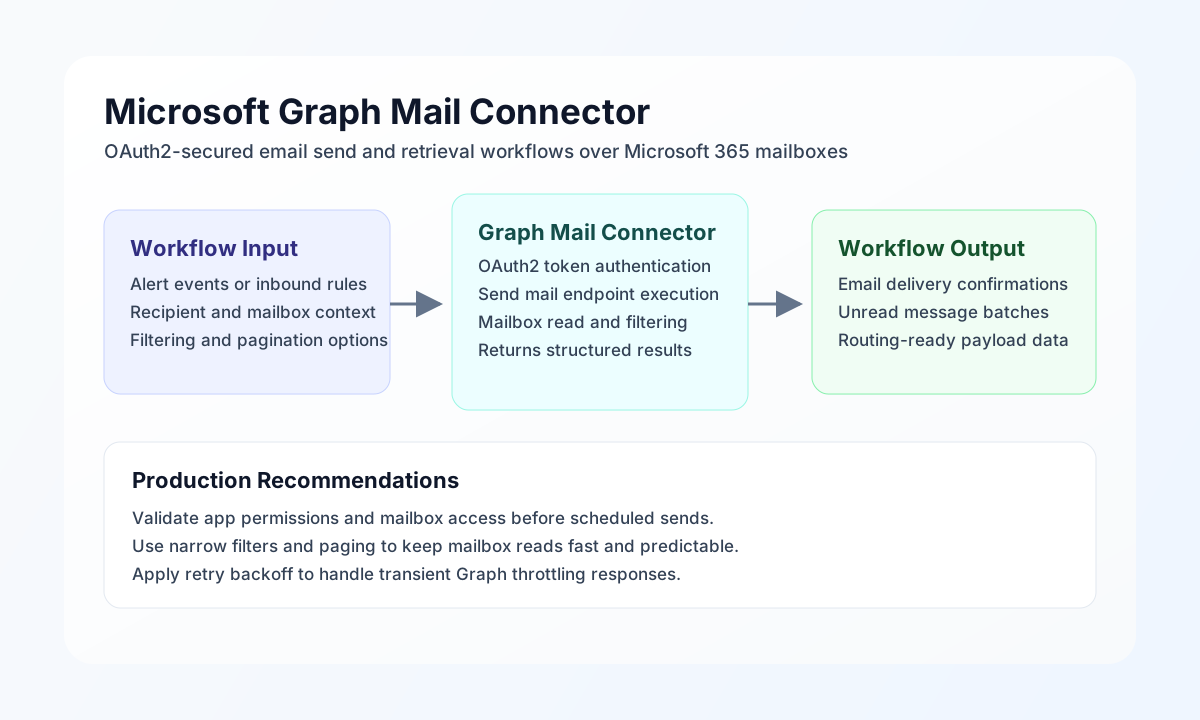
The Microsoft Graph Mail connector lets Tealfabric workflows send and retrieve email through Microsoft 365 mailboxes. It is commonly used for automated notifications, service response workflows, and mailbox-driven processing pipelines.
Document information
| Field | Value |
|---|---|
| Canonical URL | /docs/04_connecting-systems/connectors/m/microsoft-graph-mail |
| Version (published date) | 2026-05-08 |
| Tags | connectors, reference, microsoft-graph-mail |
| Connector ID | microsoft-graph-mail-1.0.0 |
Configuration and OAuth setup
Configure the connector with Azure app credentials so workflows can authenticate to Microsoft Graph securely. Required settings are client_id, client_secret, and redirect_uri. Optional values include tenant_id (default common), access_token, refresh_token, scope, and timeout_seconds.
Full OAuth app configuration validation runs only on test (matching legacy testConnection); send/receive/sync/batch require a valid access_token and surface Graph errors at request time. After setup, run test to verify mailbox access before activating production jobs.
Send emails with send
Use send to deliver operational or customer messages through Microsoft Graph Mail. Provide to (or recipients), subject, and body (or message). Optional fields include body_type (default HTML), cc, bcc, and attachments.
const baseUrl = "https://api.example.com/api/v1";
const tenantId = "<TENANT_ID>";
const apiKey = "<API_KEY>";

async function sendIncidentMail(integrationId: string) {
  const response = await fetch(`${baseUrl}/integrations/${encodeURIComponent(integrationId)}/execute`, {
    method: "POST",
    headers: {
      "X-API-Key": apiKey,
      "X-Tenant-ID": tenantId,
      "Content-Type": "application/json",
    },
    body: JSON.stringify({
      operation: "send",
      to: ["ops-team@contoso.com"],
      subject: "Priority alert: Queue backlog threshold exceeded",
      body: "Backlog exceeded 5,000 items. Investigation has started.",
      body_type: "Text"
    }),
  });
  if (!response.ok) throw new Error(`Request failed: ${response.status}`);
  return response.json();
}
curl -X POST "https://api.example.com/api/v1/integrations/<ENTITY_ID>/execute" \
-H "X-API-Key: <API_KEY>" \
-H "X-Tenant-ID: <TENANT_ID>" \
-H "Content-Type: application/json" \
-d '{
"operation": "send",
"to": ["ops-team@contoso.com"],
"subject": "Priority alert: Queue backlog threshold exceeded",
"body": "Backlog exceeded 5,000 items. Investigation has started.",
"body_type": "Text"
}'
{
  "success": true,
  "data": {
    "message_count": 1,
    "data": { "success": true }
  }
}
Retrieve mailbox data with receive
Use receive to list messages in a mail folder (default inbox). Optional fields include folder (alias folder_id), limit (alias top, default 100), filter (alias $filter), and select (alias $select).
const baseUrl = "https://api.example.com/api/v1";
const tenantId = "<TENANT_ID>";
const apiKey = "<API_KEY>";

async function listUnreadMail(integrationId: string) {
  const response = await fetch(`${baseUrl}/integrations/${encodeURIComponent(integrationId)}/execute`, {
    method: "POST",
    headers: {
      "X-API-Key": apiKey,
      "X-Tenant-ID": tenantId,
      "Content-Type": "application/json",
    },
    body: JSON.stringify({
      operation: "receive",
      folder: "inbox",
      limit: 10,
      filter: "isRead eq false",
      select: "id,subject,receivedDateTime,from,isRead"
    }),
  });
  if (!response.ok) throw new Error(`Request failed: ${response.status}`);
  return response.json();
}
curl -X POST "https://api.example.com/api/v1/integrations/<ENTITY_ID>/execute" \
  -H "X-API-Key: <API_KEY>" \
  -H "X-Tenant-ID: <TENANT_ID>" \
  -H "Content-Type: application/json" \
  -d '{
    "operation": "receive",
    "folder": "inbox",
    "limit": 10,
    "filter": "isRead eq false",
    "select": "id,subject,receivedDateTime,from,isRead"
  }'
{
  "success": true,
  "data": {
    "message_count": 1,
    "emails": [
      {
        "id": "AAMkAGI2TAAA=",
        "subject": "Order fulfillment issue",
        "receivedDateTime": "2026-05-08T15:20:12Z",
        "isRead": false
      }
    ],
    "@odata.nextLink": null
  }
}
Incremental sync with sync
Use sync for delta-query incremental mailbox synchronization. Pass an optional delta_token (alias token) from a prior sync response to continue from the last checkpoint. Returns emails, delta_token, and next_link.
{
  "operation": "sync",
  "folder": "inbox",
  "delta_token": "<PREVIOUS_DELTA_LINK_OR_TOKEN>"
}
{
  "success": true,
  "data": {
    "message_count": 2,
    "emails": [],
    "delta_token": "https://graph.microsoft.com/v1.0/me/mailFolders/inbox/messages/delta?$deltatoken=...",
    "next_link": null
  }
}
Batch operations with batch
Use batch to run sequential send or receive sub-operations. Provide operations (alias items) as an array of { operation, data } entries. Each result includes per-item success, nested result (success + data), or error.
Reliability guidance
Most integration failures are caused by expired tokens, incorrect mailbox permissions, or throttling during burst traffic. Validate with test, use least-privilege scopes, and implement retries with exponential backoff for transient Graph API failures (RATE_LIMIT and REMOTE_5XX errors are marked retriable).
For stable production automation, apply narrow mailbox filters, paginate consistently, and log Graph request context for support diagnostics. These practices keep email-driven workflows dependable and easier to operate.
When a listed message includes body.content, uniqueBody.content, or attachment contentBytes larger than MAIL_BODY_INLINE_MAX_BYTES (default 51200 UTF-8 bytes), that string is written under .cache/mail-bodies/ and replaced with content_path / contentBytes_path plus *_bytes and *_spooled. Prefer $select that omits body when you only need headers. When a part is spooled, read_file that path instead of ingesting the whole result JSON.