Power BI API Connector Guide
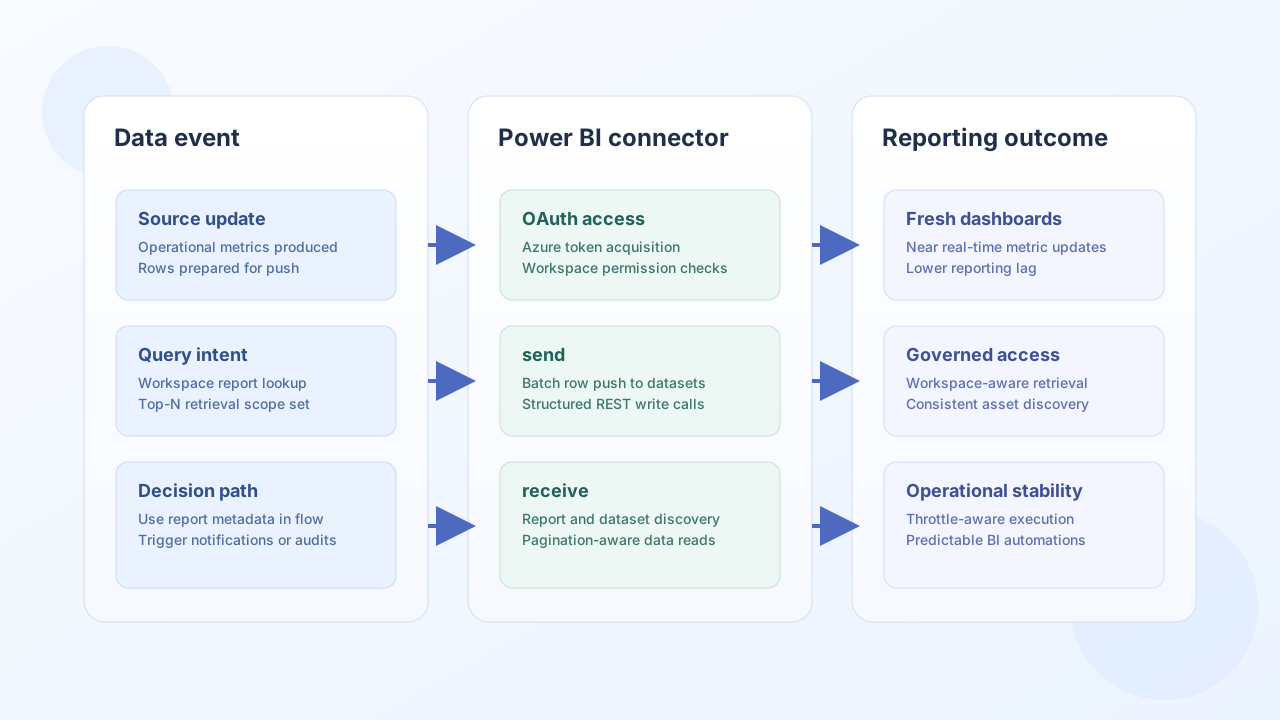
The Power BI connector helps Tealfabric workflows push data into Power BI and retrieve reporting assets such as workspaces, datasets, and reports. It is commonly used for automated BI refresh pipelines, operational dashboard updates, and reporting governance workflows.
Document information
| Field | Value |
|---|---|
| Canonical URL | /docs/04_connecting-systems/connectors/p/power-bi |
| Version (published date) | 2026-05-08 |
| Tags | connectors, reference, power-bi |
| Connector ID | power-bi-1.0.0 |
Configuration and OAuth setup
Configure the connector with Azure AD application credentials so it can obtain and refresh tokens for Power BI API access. Ensure the app has the required Power BI scopes and tenant permissions before enabling production workflows.
client_id(required): Azure AD application ID.client_secret(required): application secret.redirect_uri(required): OAuth callback URI.access_token(optional): active OAuth token.refresh_token(optional): token refresh value.scope(optional): requested API scopes.timeout_seconds(optional): request timeout value.
For enterprise setups, align app permissions with workspace-level access policies and service principal governance rules.
Push dataset rows with send
Use send when workflows need to update Power BI datasets with fresh operational data. Batch row pushes are recommended for better API efficiency and lower request overhead.
const baseUrl = "https://api.example.com/api/v1";
const tenantId = "<TENANT_ID>";
const apiKey = "<API_KEY>";

async function pushDatasetRows(integrationId: string) {
  const response = await fetch(`${baseUrl}/integrations/${encodeURIComponent(integrationId)}/execute`, {
    method: "POST",
    headers: {
      "X-API-Key": apiKey,
      "X-Tenant-ID": tenantId,
      "Content-Type": "application/json",
    },
    body: JSON.stringify({
      operation: "send",
      endpoint: "groups/<ENTITY_ID>/datasets/<ENTITY_ID>/tables/SalesMetrics/rows",
      method: "POST",
      data: {
        rows: [
          {"Date": "2026-05-08", "Region": "EMEA", "Revenue": 18250.42},
          {"Date": "2026-05-08", "Region": "NA", "Revenue": 14390.15}
        }
      }
    }),
  });
  if (!response.ok) throw new Error(`Request failed: ${response.status}`);
  return response.json();
}
curl -X POST "https://api.example.com/api/v1/integrations/<ENTITY_ID>/execute" \
-H "X-API-Key: <API_KEY>" \
-H "X-Tenant-ID: <TENANT_ID>" \
-H "Content-Type: application/json" \
-d '{
"operation": "send",
"endpoint": "groups/<ENTITY_ID>/datasets/<ENTITY_ID>/tables/SalesMetrics/rows",
"method": "POST",
"data": {
"rows": [
{"Date": "2026-05-08", "Region": "EMEA", "Revenue": 18250.42},
{"Date": "2026-05-08", "Region": "NA", "Revenue": 14390.15}
]
}
}'
{
  "success": true,
  "data": {
    "message_count": 1,
    "data": {
      "status": "accepted"
    },
    "response": {
      "status": "accepted"
    }
  }
}
Retrieve analytics assets with receive
Use receive to list workspaces, datasets, and reports for governance checks or reporting automation. Query-scoped retrieval helps workflows stay efficient in large Power BI tenants.
const baseUrl = "https://api.example.com/api/v1";
const tenantId = "<TENANT_ID>";
const apiKey = "<API_KEY>";

async function listWorkspaceReports(integrationId: string) {
  const response = await fetch(`${baseUrl}/integrations/${encodeURIComponent(integrationId)}/execute`, {
    method: "POST",
    headers: {
      "X-API-Key": apiKey,
      "X-Tenant-ID": tenantId,
      "Content-Type": "application/json",
    },
    body: JSON.stringify({
      operation: "receive",
      endpoint: "groups/<ENTITY_ID>/reports",
      query: {
        "top": 20
      }
    }),
  });
  if (!response.ok) throw new Error(`Request failed: ${response.status}`);
  const payload = await response.json();
  return payload.data?.data ?? [];
}
curl -X POST "https://api.example.com/api/v1/integrations/<ENTITY_ID>/execute" \
  -H "X-API-Key: <API_KEY>" \
  -H "X-Tenant-ID: <TENANT_ID>" \
  -H "Content-Type: application/json" \
  -d '{
    "operation": "receive",
    "endpoint": "groups/<ENTITY_ID>/reports",
    "query": {
      "$top": 20
    }
  }'
{
  "success": true,
  "data": {
    "message_count": 2,
    "total_size": 2,
    "data": [
      {"id": "rpt-1001", "name": "Executive KPI Dashboard"},
      {"id": "rpt-1002", "name": "Regional Sales Overview"}
    ]
  }
}
Validate connectivity with test
Use test to confirm OAuth tokens and workspace access. Unlike send/receive/sync/batch, test validates client_id, client_secret, and redirect_uri before calling GET groups.
{
  "success": true,
  "data": {
    "message": "Power BI connection test successful",
    "details": {
      "api_base_url": "https://api.powerbi.com/v1.0/myorg"
    }
  }
}
Reliability guidance
Most Power BI integration failures come from expired tokens, missing workspace permissions, or aggressive push/read frequencies that trigger throttling. Validate access with test, enforce retries for transient API failures, and batch row pushes to reduce request pressure.
These practices keep BI automation stable while preserving report freshness.