Microsoft Teams API Connector Guide
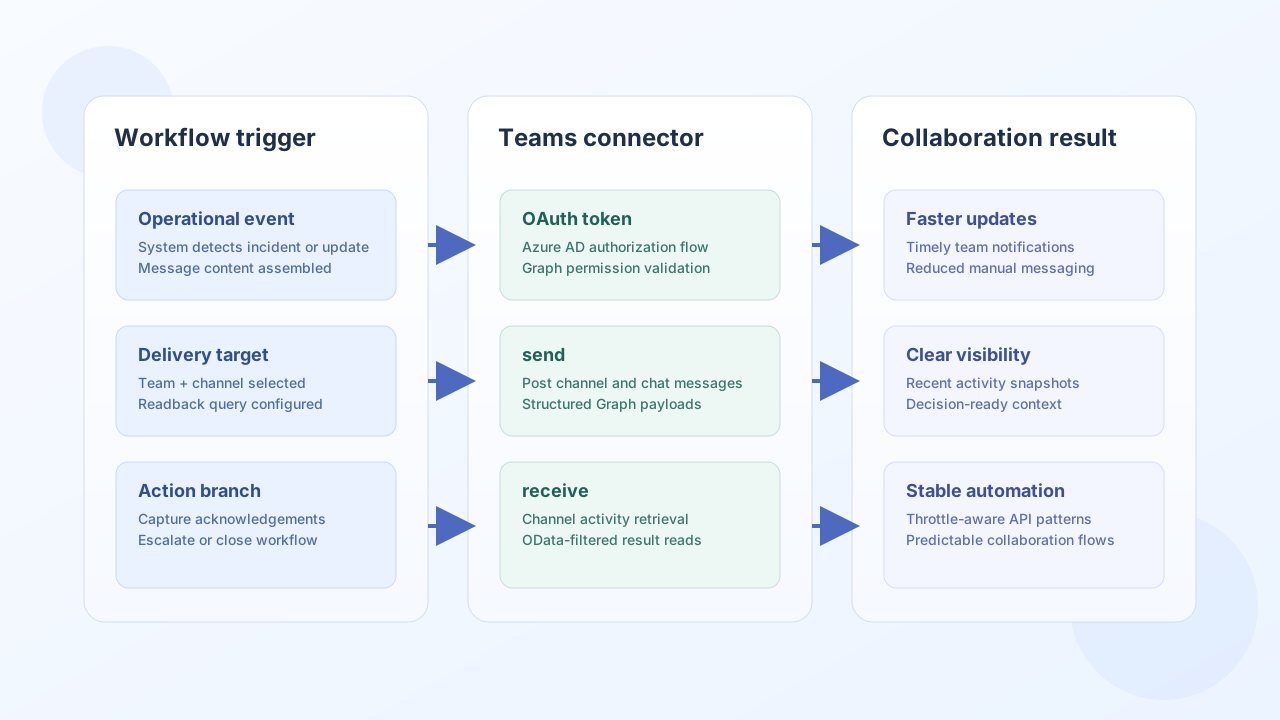
The Microsoft Teams connector lets Tealfabric workflows send and retrieve collaboration data through Microsoft Graph. It is commonly used for automated team notifications, channel activity tracking, and operational workflows tied to Microsoft 365 collaboration spaces.
Document information
| Field | Value |
|---|---|
| Canonical URL | /docs/04_connecting-systems/connectors/t/teams-api |
| Version (published date) | 2026-05-08 |
| Tags | connectors, reference, teams-api |
| Connector ID | teams-api-1.0.0 |
Configuration and OAuth setup
Configure the connector with Azure AD application credentials so workflows can acquire Microsoft Graph access tokens. Ensure your app registration has the exact Teams and Graph permissions required by your use case before production deployment.
client_id(required): Azure AD application ID.client_secret(required): app secret.redirect_uri(required): OAuth callback URL.access_token(optional): active OAuth access token.refresh_token(optional): refresh token for renewal.scope(optional): requested Microsoft Graph scopes (defaulthttps://graph.microsoft.com/.default).timeout_seconds(optional): request timeout value (default30).
The test operation validates client_id, client_secret, and redirect_uri before calling Microsoft Graph GET me. Other operations (send, receive, sync, batch) require only a valid access_token at runtime.
Start with least-privilege scopes, then expand only if a workflow requires additional endpoints.
Send channel messages with send
Use send to post messages into a Teams channel or chat as part of automated operations. Structured HTML content is useful for concise incident notifications and action prompts.
const baseUrl = "https://api.example.com/api/v1";
const tenantId = "<TENANT_ID>";
const apiKey = "<API_KEY>";

async function sendTeamsChannelMessage(integrationId: string) {
  const response = await fetch(`${baseUrl}/integrations/${encodeURIComponent(integrationId)}/execute`, {
    method: "POST",
    headers: {
      "X-API-Key": apiKey,
      "X-Tenant-ID": tenantId,
      "Content-Type": "application/json",
    },
    body: JSON.stringify({
      operation: "send",
      endpoint: "teams/<ENTITY_ID>/channels/<ENTITY_ID>/messages",
      method: "POST",
      data: {
        body: {
          contentType: "html",
          content: "<p><strong>Alert:</strong> Nightly ETL finished with 2 failed jobs.</p>"
        }
      }
    }),
  });
  if (!response.ok) throw new Error(`Request failed: ${response.status}`);
  return response.json();
}
curl -X POST "https://api.example.com/api/v1/integrations/<ENTITY_ID>/execute" \
-H "X-API-Key: <API_KEY>" \
-H "X-Tenant-ID: <TENANT_ID>" \
-H "Content-Type: application/json" \
-d '{
"operation": "send",
"endpoint": "teams/<ENTITY_ID>/channels/<ENTITY_ID>/messages",
"method": "POST",
"data": {
"body": {
"contentType": "html",
"content": "<p><strong>Alert:</strong> Nightly ETL finished with 2 failed jobs.</p>"
}
}
}'
{
  "success": true,
  "data": {
    "message_count": 1,
    "data": {
      "id": "1711111111111",
      "createdDateTime": "2026-05-08T15:13:00Z"
    },
    "response": {
      "id": "1711111111111",
      "createdDateTime": "2026-05-08T15:13:00Z"
    }
  }
}
Retrieve channel activity with receive
Use receive to pull channel messages for monitoring, workflow audit trails, and downstream decision logic. OData query options help keep retrieval efficient in active channels.
const baseUrl = "https://api.example.com/api/v1";
const tenantId = "<TENANT_ID>";
const apiKey = "<API_KEY>";

async function fetchRecentChannelMessages(integrationId: string) {
  const response = await fetch(`${baseUrl}/integrations/${encodeURIComponent(integrationId)}/execute`, {
    method: "POST",
    headers: {
      "X-API-Key": apiKey,
      "X-Tenant-ID": tenantId,
      "Content-Type": "application/json",
    },
    body: JSON.stringify({
      operation: "receive",
      endpoint: "teams/<ENTITY_ID>/channels/<ENTITY_ID>/messages",
      query: {
        "$top": 10,
        "$orderby": "createdDateTime desc"
      }
    }),
  });
  if (!response.ok) throw new Error(`Request failed: ${response.status}`);
  const payload = await response.json();
  return payload.data?.data ?? [];
}
curl -X POST "https://api.example.com/api/v1/integrations/<ENTITY_ID>/execute" \
  -H "X-API-Key: <API_KEY>" \
  -H "X-Tenant-ID: <TENANT_ID>" \
  -H "Content-Type: application/json" \
  -d '{
    "operation": "receive",
    "endpoint": "teams/<ENTITY_ID>/channels/<ENTITY_ID>/messages",
    "query": {
      "$top": 10,
      "$orderby": "createdDateTime desc"
    }
  }'
{
  "success": true,
  "data": {
    "message_count": 2,
    "total_size": 2,
    "data": [
      {"id": "1711111111111", "body": {"content": "<p>Acknowledged.</p>"}},
      {"id": "1711111111112", "body": {"content": "<p>Investigating ETL failures.</p>"}}
    ]
  }
}
Validate connectivity with test
Use test to confirm OAuth credentials and Microsoft Graph access before enabling production workflows. The connector calls GET me and returns the signed-in user id.
{
  "success": true,
  "data": {
    "message": "Teams API connection test successful",
    "details": {
      "api_base_url": "https://graph.microsoft.com/v1.0",
      "user_id": "00000000-0000-0000-0000-000000000000"
    }
  }
}
Reliability guidance
Most production issues come from missing Graph scopes, expired tokens, or high-frequency polling without throttling controls. Validate access with test, request only necessary permissions, and apply backoff logic for transient rate limits.
These controls keep Teams collaboration automations dependable and easier to maintain.