OneDrive API Connector Guide
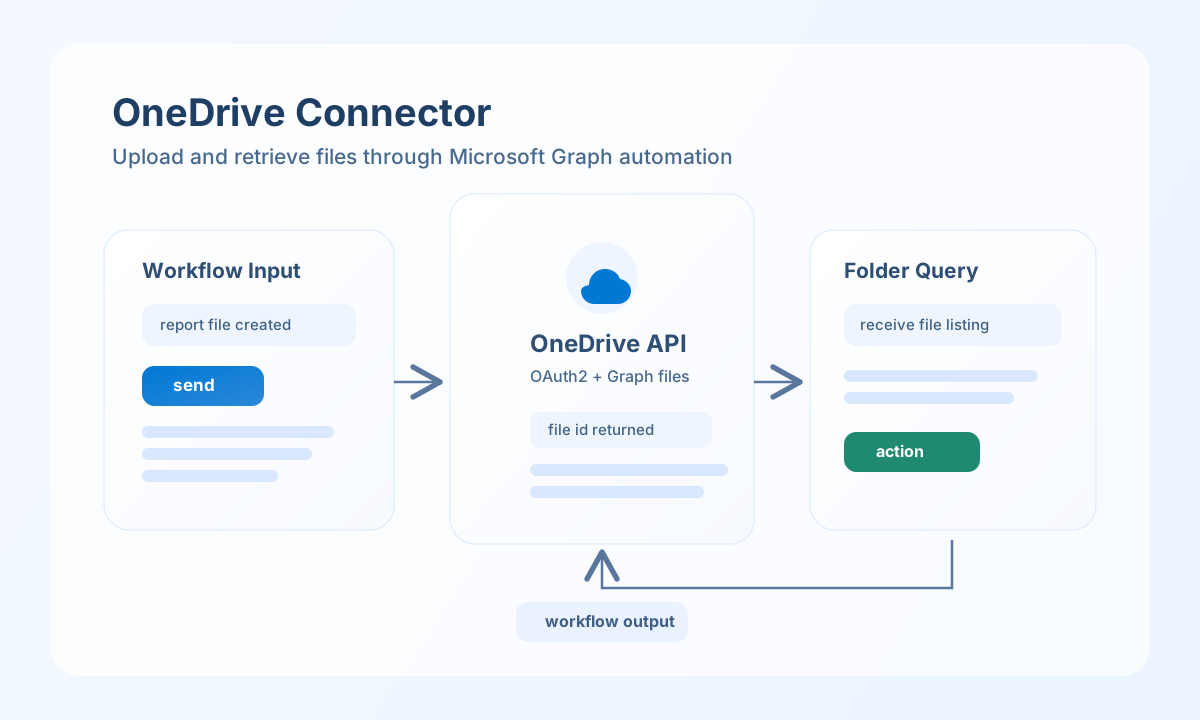
The OneDrive API connector lets Tealfabric workflows upload, retrieve, and organize files in Microsoft OneDrive through Microsoft Graph. It is useful for automating report delivery, document synchronization, and workflow-driven file processing.
Document information
| Field | Value |
|---|---|
| Canonical URL | /docs/04_connecting-systems/connectors/o/onedrive |
| Version (published date) | 2026-05-08 |
| Tags | connectors, reference, onedrive |
| Connector ID | onedrive-1.0.0 |
Configure OneDrive OAuth access
Set client_id, client_secret, and redirect_uri from your Azure App Registration, and ensure redirect URIs match exactly to avoid token exchange failures. Assign Graph scopes such as Files.ReadWrite or Files.ReadWrite.All based on required workflow behavior.
Store access_token and refresh_token in integration settings after authorization, and set a default remote_path when most operations target the same directory. Run test before production use to confirm drive access and token validity.
Upload files with send
Use send for file uploads to OneDrive paths in response to workflow events.
Upload size limits
| Limit | Value | Notes |
|---|---|---|
| Simple PUT upload | Up to 1 GB per file | Uses Graph PUT .../content |
| ≥ 1 GB | Not supported | Requires Microsoft Graph resumable upload session API (not implemented in this connector) |
For files approaching 1 GB, allow extra timeout_seconds and monitor Graph throttling. Plan resumable-upload support or external staging for larger assets.
const baseUrl = "https://api.example.com/api/v1";
const tenantId = "<TENANT_ID>";
const apiKey = "<API_KEY>";

async function uploadDailyReport(integrationId: string, fileBase64: string) {
  const response = await fetch(`${baseUrl}/integrations/${encodeURIComponent(integrationId)}/execute`, {
    method: "POST",
    headers: {
      "X-API-Key": apiKey,
      "X-Tenant-ID": tenantId,
      "Content-Type": "application/json",
    },
    body: JSON.stringify({
      operation: "send",
      endpoint: "me/drive/root:/Documents/reports/daily-summary-<ENTITY_ID>.pdf:/content",
      method: "PUT",
      data: {
        content: fileBase64,
        content_type: "application/pdf"
      }
    }),
  });
  if (!response.ok) throw new Error(`Request failed: ${response.status}`);
  return response.json();
}
curl -X POST "https://api.example.com/api/v1/integrations/<ENTITY_ID>/execute" \
-H "X-API-Key: <API_KEY>" \
-H "X-Tenant-ID: <TENANT_ID>" \
-H "Content-Type: application/json" \
-d '{
"operation": "send",
"endpoint": "me/drive/root:/Documents/reports/daily-summary-<ENTITY_ID>.pdf:/content",
"method": "PUT",
"data": {
"content": "<ENTITY_ID>",
"content_type": "application/pdf"
}
}'
{
  "success": true,
  "data": {
    "id": "<ENTITY_ID>",
    "name": "daily-summary-<ENTITY_ID>.pdf",
    "size": 245760
  }
}
List and retrieve files with receive
Use receive to list folder contents or fetch individual file metadata and content for downstream automation. Keep query selection small to reduce payload size and improve run-time consistency.
const baseUrl = "https://api.example.com/api/v1";
const tenantId = "<TENANT_ID>";
const apiKey = "<API_KEY>";

async function listReportFiles(integrationId: string) {
  const response = await fetch(`${baseUrl}/integrations/${encodeURIComponent(integrationId)}/execute`, {
    method: "POST",
    headers: {
      "X-API-Key": apiKey,
      "X-Tenant-ID": tenantId,
      "Content-Type": "application/json",
    },
    body: JSON.stringify({
      operation: "receive",
      endpoint: "me/drive/root:/Documents/reports:/children",
      query: {
        "top": 10
      }
    }),
  });
  if (!response.ok) throw new Error(`Request failed: ${response.status}`);
  return response.json();
}
curl -X POST "https://api.example.com/api/v1/integrations/<ENTITY_ID>/execute" \
  -H "X-API-Key: <API_KEY>" \
  -H "X-Tenant-ID: <TENANT_ID>" \
  -H "Content-Type: application/json" \
  -d '{
    "operation": "receive",
    "endpoint": "me/drive/root:/Documents/reports:/children",
    "query": {
      "$top": 10
    }
  }'
{
  "success": true,
  "data": {
    "value": [
      {
        "id": "<ENTITY_ID>",
        "name": "daily-summary-<ENTITY_ID>.pdf",
        "size": 245760
      }
    ]
  }
}
Production guidance
OneDrive and Microsoft Graph permissions are scope-driven, so keep scopes minimal and aligned to required file operations. This improves security posture and reduces unexpected authorization failures during workflow runs.
Most production issues come from expired tokens, path mismatches, and unsupported upload strategy for larger files. Re-test integration after credential changes and move large-file flows to upload sessions when needed.
Related resources
Use the OneDrive API documentation and Microsoft Graph OneDrive reference for endpoint details.