IBM Cloud Platform Connector Guide
The IBM Cloud connector helps Tealfabric workflows create, update, and retrieve IBM Cloud resources such as service instances and credentials. It is useful for automating cloud resource lifecycle tasks across environments and teams.
Document information
| Field | Value |
|---|---|
| Canonical URL | /docs/04_connecting-systems/connectors/i/ibm-cloud |
| Version (published date) | 2026-05-08 |
| Tags | connectors, reference, ibm-cloud |
| Connector ID | ibm-cloud-1.0.0 |
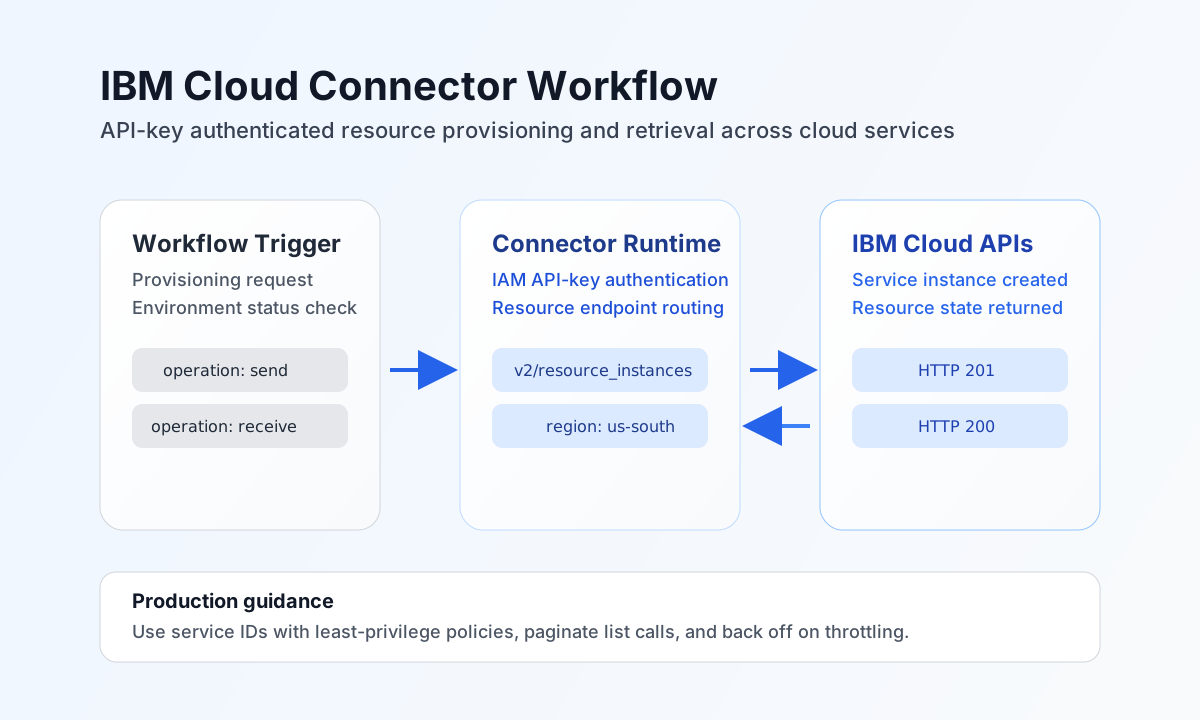
Configure IBM Cloud API access
Set api_key to an IBM Cloud API key generated from IAM for a user or service ID with appropriate policies for your target resources. Use a dedicated service identity where possible so permission scope and auditing remain clear in production environments.
Set region to record the primary IBM Cloud region in integration metadata (returned in test details). Request URLs are built from https://cloud.ibm.com/{endpoint} and do not currently append region as a host or query parameter—match region-specific API paths in endpoint per IBM Cloud API references. Adjust timeout_seconds for longer provisioning calls. Run test after setup to verify authentication and base API reachability before enabling automated workflows.
Provision resources with send
Use send for write operations such as creating service instances, keys, or other cloud resources. Keep endpoint and payload structure aligned with the selected IBM Cloud API to reduce request validation errors.
const baseUrl = "https://api.example.com/api/v1";
const tenantId = "<TENANT_ID>";
const apiKey = "<API_KEY>";

async function createServiceInstance(integrationId: string) {
  const response = await fetch(`${baseUrl}/integrations/${encodeURIComponent(integrationId)}/execute`, {
    method: "POST",
    headers: {
      "X-API-Key": apiKey,
      "X-Tenant-ID": tenantId,
      "Content-Type": "application/json",
    },
    body: JSON.stringify({
      operation: "send",
      endpoint: "v2/resource_instances",
      method: "POST",
      data: {
        name: "tealfabric-monitoring-instance",
        target: "us-south",
        resource_group: "<ENTITY_ID>",
        resource_plan_id: "<ENTITY_ID>"
      }
    }),
  });
  if (!response.ok) throw new Error(`Request failed: ${response.status}`);
  return response.json();
}
curl -X POST "https://api.example.com/api/v1/integrations/<ENTITY_ID>/execute" \
-H "X-API-Key: <API_KEY>" \
-H "X-Tenant-ID: <TENANT_ID>" \
-H "Content-Type: application/json" \
-d '{
"operation": "send",
"endpoint": "v2/resource_instances",
"method": "POST",
"data": {
"name": "tealfabric-monitoring-instance",
"target": "us-south",
"resource_group": "<ENTITY_ID>",
"resource_plan_id": "<ENTITY_ID>"
}
}'
{
  "success": true,
  "data": {
    "message": "IBM Cloud operation completed successfully",
    "result": {
      "id": "<ENTITY_ID>",
      "name": "tealfabric-monitoring-instance",
      "state": "active"
    }
  }
}
Retrieve resource state with receive
Use receive to list existing services, monitor provisioning status, or feed infrastructure inventory workflows. Include resource group and type filters where possible to keep responses focused and efficient.
const baseUrl = "https://api.example.com/api/v1";
const tenantId = "<TENANT_ID>";
const apiKey = "<API_KEY>";

async function listServiceInstances(integrationId: string) {
  const response = await fetch(`${baseUrl}/integrations/${encodeURIComponent(integrationId)}/execute`, {
    method: "POST",
    headers: {
      "X-API-Key": apiKey,
      "X-Tenant-ID": tenantId,
      "Content-Type": "application/json",
    },
    body: JSON.stringify({
      operation: "receive",
      endpoint: "v2/resource_instances",
      query: {
        resource_group_id: "<ENTITY_ID>",
        type: "service_instance",
        limit: 20
      }
    }),
  });
  if (!response.ok) throw new Error(`Request failed: ${response.status}`);
  return response.json();
}
curl -X POST "https://api.example.com/api/v1/integrations/<ENTITY_ID>/execute" \
-H "X-API-Key: <API_KEY>" \
-H "X-Tenant-ID: <TENANT_ID>" \
-H "Content-Type: application/json" \
-d '{
"operation": "receive",
"endpoint": "v2/resource_instances",
"query": {
"resource_group_id": "<ENTITY_ID>",
"type": "service_instance",
"limit": 20
}
}'
{
  "success": true,
  "data": {
    "message": "IBM Cloud data retrieved successfully",
    "resource_count": 1,
    "items": [
      {
        "id": "<ENTITY_ID>",
        "name": "tealfabric-monitoring-instance",
        "state": "active"
      }
    ]
  }
}
Execute arbitrary API calls with execute
Use execute when you need a non-default HTTP method or want to pass body explicitly (preferred over data when both are present). Default method is GET.
{
  "operation": "execute",
  "endpoint": "v2/resource_instances/<ENTITY_ID>",
  "method": "GET"
}
{
  "success": true,
  "data": {
    "message": "IBM Cloud method executed successfully",
    "result": {
      "id": "<ENTITY_ID>",
      "name": "tealfabric-monitoring-instance",
      "state": "active"
    }
  }
}
Test connectivity with test
test validates api_key by calling GET v1/accounts against https://cloud.ibm.com.
{
  "success": true,
  "data": {
    "message": "IBM Cloud connection test successful",
    "details": {
      "api_base_url": "https://cloud.ibm.com",
      "region": "us-south"
    }
  }
}
Operate safely in production
IBM Cloud APIs can return throttling responses under high request volume, especially in inventory and provisioning automation. Use pagination, retry with exponential backoff, and workload staggering to maintain stable execution.
Authentication and authorization failures usually come from revoked API keys or insufficient IAM policy scope. Rotate keys regularly, prefer service IDs with least-privilege policies, and avoid exposing credential values in logs.
Related resources
For endpoint and payload details, see the IBM Cloud API documentation, Resource Controller API, and IBM Cloud API key management guide.