HTML File Connector Guide
The HTML File connector lets Tealfabric workflows store, retrieve, and transform HTML documents in tenant storage. It is useful for document generation pipelines, content extraction steps, and validation checks before publishing or downstream processing.
Document information
| Field | Value |
|---|---|
| Canonical URL | /docs/04_connecting-systems/connectors/h/html-file |
| Version (published date) | 2026-05-08 |
| Tags | connectors, reference, html-file |
| Connector ID | html-file-1.0.0 |
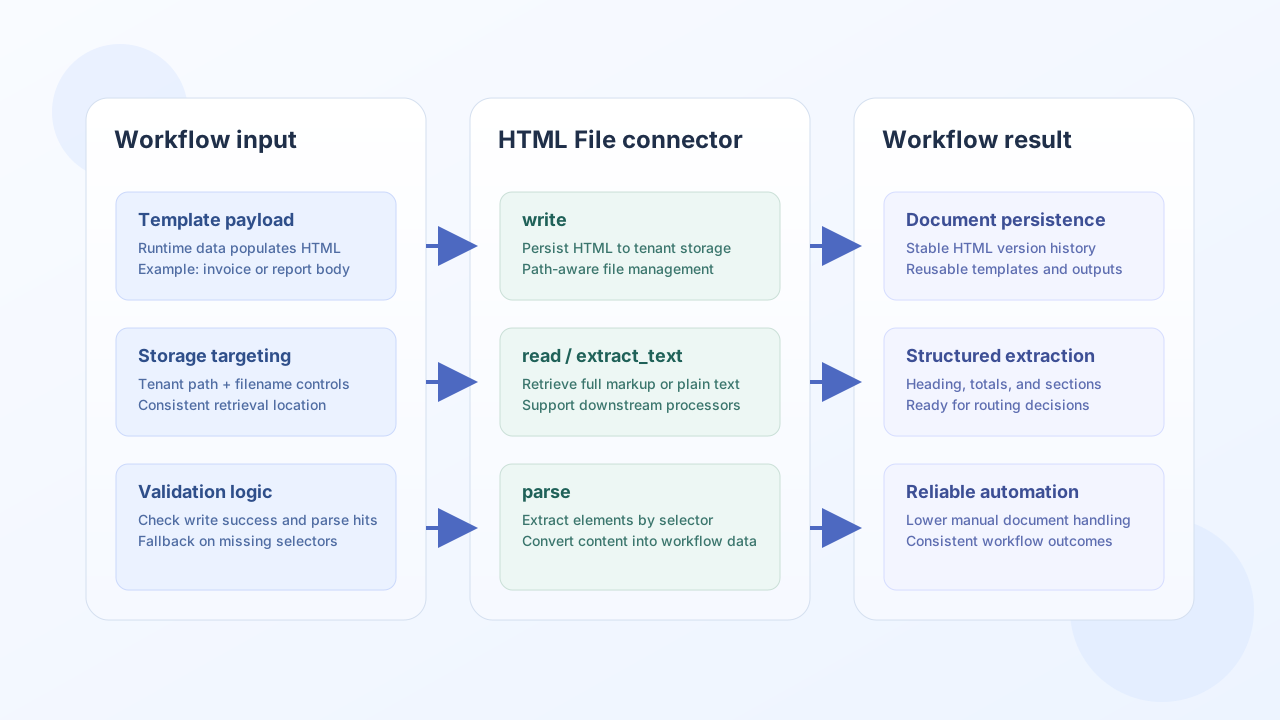
Configuration
Configure the connector with the target file location in tenant storage so workflow steps read and write the same document path consistently.
filename(required): HTML file name, for exampleinvoice-template.html.path(optional): relative folder understorage/<tenant_id>/, for exampledocuments/templates.
Paths that attempt directory traversal (such as ..) are blocked. Use test after setup to confirm the integration can access the configured location.
Write HTML with write
Use write when your workflow creates or updates HTML content. Content may be supplied as content, html, or data. Numeric values such as 0 are accepted when PHP is_numeric would allow them.
const baseUrl = "https://api.example.com/api/v1";
const tenantId = "<TENANT_ID>";
const apiKey = "<API_KEY>";

async function saveInvoiceHtml(integrationId: string) {
  const html = "<html><body><h1>Invoice #1007</h1><p>Total: $420.00</p></body></html>";
  const response = await fetch(`${baseUrl}/integrations/${encodeURIComponent(integrationId)}/execute`, {
    method: "POST",
    headers: {
      "X-API-Key": apiKey,
      "X-Tenant-ID": tenantId,
      "Content-Type": "application/json",
    },
    body: JSON.stringify({
      operation: "write",
      filename: "invoice-1007.html",
      path: "documents/invoices",
      content: html,
    }),
  });
  if (!response.ok) throw new Error(`Request failed: ${response.status}`);
  return response.json();
}
curl -X POST "https://api.example.com/api/v1/integrations/<ENTITY_ID>/execute" \
-H "X-API-Key: <API_KEY>" \
-H "X-Tenant-ID: <TENANT_ID>" \
-H "Content-Type: application/json" \
-d '{
"operation": "write",
"filename": "invoice-1007.html",
"path": "documents/invoices",
"content": "<html><body><h1>Invoice #1007</h1><p>Total: $420.00</p></body></html>"
}'
{
  "success": true,
  "data": {
    "message": "HTML file written successfully",
    "file_path": "storage/<tenant_id>/documents/invoices/invoice-1007.html",
    "file_size": 74
  }
}
Read and parse HTML with read and parse
Use read to retrieve full document content. Use parse to extract structured elements from inline html/content or from the configured file when no inline HTML is provided.
When tag is set (for example h1), the connector returns an array of matching elements with tag, text, and attributes. When tag is omitted, the connector returns a summary object with title, headings, links (non-empty href only), and images.
const baseUrl = "https://api.example.com/api/v1";
const tenantId = "<TENANT_ID>";
const apiKey = "<API_KEY>";

async function parseInvoiceHeading(integrationId: string) {
  const response = await fetch(`${baseUrl}/integrations/${encodeURIComponent(integrationId)}/execute`, {
    method: "POST",
    headers: {
      "X-API-Key": apiKey,
      "X-Tenant-ID": tenantId,
      "Content-Type": "application/json",
    },
    body: JSON.stringify({
      operation: "parse",
      filename: "invoice-1007.html",
      path: "documents/invoices",
      tag: "h1",
    }),
  });
  if (!response.ok) throw new Error(`Request failed: ${response.status}`);
  const payload = await response.json();
  return payload.data?.elements ?? [];
}
curl -X POST "https://api.example.com/api/v1/integrations/<ENTITY_ID>/execute" \
-H "X-API-Key: <API_KEY>" \
-H "X-Tenant-ID: <TENANT_ID>" \
-H "Content-Type: application/json" \
-d '{
"operation": "parse",
"filename": "invoice-1007.html",
"path": "documents/invoices",
"tag": "h1"
}'
{
  "success": true,
  "data": {
    "message": "HTML parsed successfully",
    "elements": [
      {"tag": "H1", "text": "Invoice #1007", "attributes": {}}
    ]
  }
}
Extract plain text with extract_text
Use extract_text to strip scripts, styles, and tags from the configured HTML file and return collapsed plain text with word_count and character_count.
Test file access with test
Use test during deployment checks. When the target file exists, the connector verifies readability. When it does not exist, the connector creates parent directories when needed and verifies the directory is writable.
{
  "success": true,
  "data": {
    "message": "HTML file connector test successful",
    "details": {
      "file_path": "storage/<tenant_id>/documents/invoices/invoice-1007.html",
      "file_exists": true
    }
  }
}
Reliability guidance
Most failures come from missing files, invalid paths, or malformed HTML written earlier in the workflow. Use test during deployment checks, validate the target path before writing, and apply graceful fallback logic when parse tag queries return no matches.
These controls keep content workflows robust and easier to troubleshoot at scale.