FTP Server Connector Guide
The FTP Server connector lets Tealfabric workflows move files between internal systems and FTP endpoints for batch processing, archival, and partner exchange. It supports upload, download, and directory listing operations through a single integration profile.
Document information
| Field | Value |
|---|---|
| Canonical URL | /docs/04_connecting-systems/connectors/f/ftp |
| Version (published date) | 2026-05-08 |
| Tags | connectors, reference, ftp |
| Connector ID | ftp-1.0.0 |
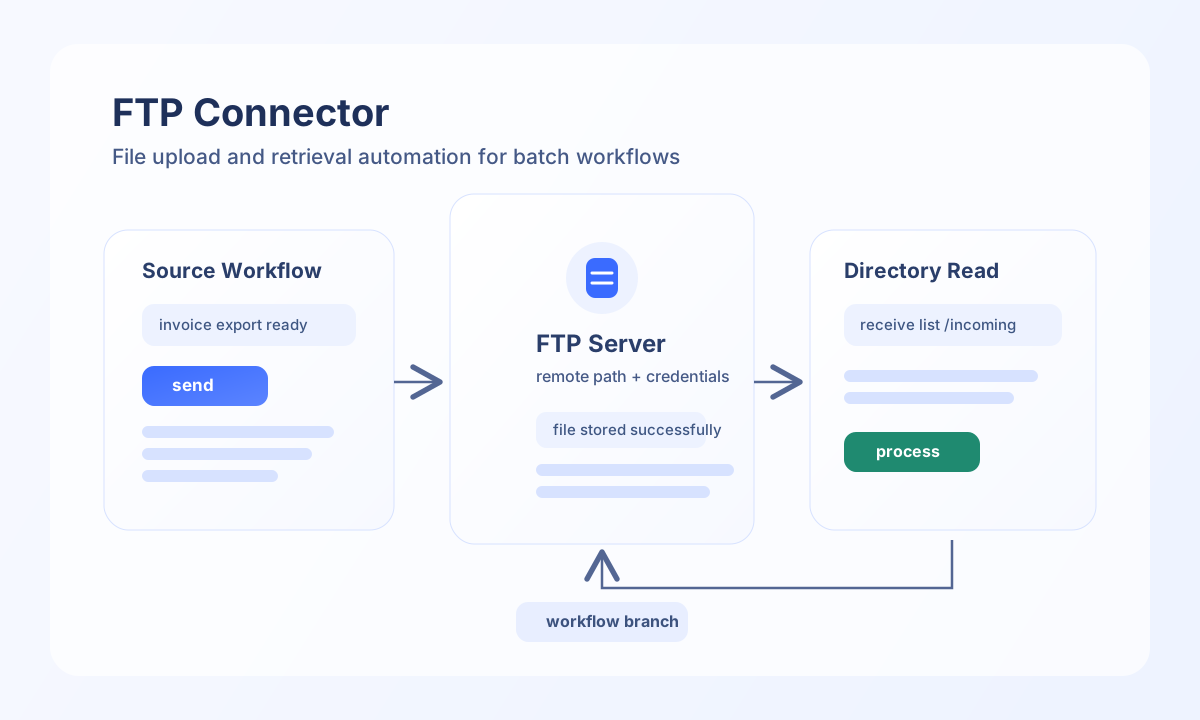
Configure FTP connection settings
Set host, username, and password for the target FTP server, and keep credentials in secure integration storage. Configure port when your server uses a non-default endpoint, and set a stable remote_path if most operations target the same directory.
Enable use_passive_mode in network-restricted environments to reduce firewall issues, and tune timeout_seconds for larger transfers. If your environment requires encrypted transport, prefer SFTP or FTPS-capable infrastructure because plain FTP does not protect credentials in transit.
Upload files with send
Use send to upload file payloads to a remote path or create directories before transfer. File content should be base64 encoded so binary files are transported safely in request payloads.
const baseUrl = "https://api.example.com/api/v1";
const tenantId = "<TENANT_ID>";
const apiKey = "<API_KEY>";

async function uploadInvoice(integrationId: string, fileBase64: string) {
  const response = await fetch(`${baseUrl}/integrations/${encodeURIComponent(integrationId)}/execute`, {
    method: "POST",
    headers: {
      "X-API-Key": apiKey,
      "X-Tenant-ID": tenantId,
      "Content-Type": "application/json",
    },
    body: JSON.stringify({
      operation: "send",
      action: "upload",
      remote_path: "/uploads/invoices/invoice-<ENTITY_ID>.pdf",
      file_name: "invoice-<ENTITY_ID>.pdf",
      file_content: fileBase64
    }),
  });
  if (!response.ok) throw new Error(`Request failed: ${response.status}`);
  return response.json();
}
curl -X POST "https://api.example.com/api/v1/integrations/<ENTITY_ID>/execute" \
-H "X-API-Key: <API_KEY>" \
-H "X-Tenant-ID: <TENANT_ID>" \
-H "Content-Type: application/json" \
-d '{
"operation": "send",
"action": "upload",
"remote_path": "/uploads/invoices/invoice-<ENTITY_ID>.pdf",
"file_name": "invoice-<ENTITY_ID>.pdf",
"file_content": "<ENTITY_ID>"
}'
{
  "success": true,
  "data": {
    "remote_path": "/uploads/invoices/invoice-<ENTITY_ID>.pdf",
    "uploaded": true,
    "file_size": 84213
  }
}
Read remote files with receive
Use receive to download individual files or list directory contents before selecting targets for processing. Directory listing is useful when your workflow should only act on files matching naming patterns.
const baseUrl = "https://api.example.com/api/v1";
const tenantId = "<TENANT_ID>";
const apiKey = "<API_KEY>";

async function listIncomingFiles(integrationId: string) {
  const response = await fetch(`${baseUrl}/integrations/${encodeURIComponent(integrationId)}/execute`, {
    method: "POST",
    headers: {
      "X-API-Key": apiKey,
      "X-Tenant-ID": tenantId,
      "Content-Type": "application/json",
    },
    body: JSON.stringify({
      operation: "receive",
      action: "list",
      remote_path: "/incoming",
      pattern: "*.csv"
    }),
  });
  if (!response.ok) throw new Error(`Request failed: ${response.status}`);
  return response.json();
}
curl -X POST "https://api.example.com/api/v1/integrations/<ENTITY_ID>/execute" \
-H "X-API-Key: <API_KEY>" \
-H "X-Tenant-ID: <TENANT_ID>" \
-H "Content-Type: application/json" \
-d '{
"operation": "receive",
"action": "list",
"remote_path": "/incoming",
"pattern": "*.csv"
}'
{
  "success": true,
  "data": [
    {
      "name": "orders-2026-05-08.csv",
      "type": "file",
      "size": 19422,
      "modified": "2026-05-08 19:30:00"
    }
  ],
  "total_size": 1
}
Production guidance
FTP workflows are most reliable when paths are absolute, directory creation is explicit, and post-transfer verification is built into the process. Listing the target directory after upload helps catch permission issues and partial transfers early.
Because standard FTP is not encrypted, use it only in trusted network zones or behind additional protections such as VPN tunnels. For internet-facing or compliance-sensitive transfers, prefer secure alternatives such as SFTP.
Related resources
See RFC 959 for FTP protocol behavior and FTP vs SFTP guidance when choosing transport security.