Excel File Connector Guide
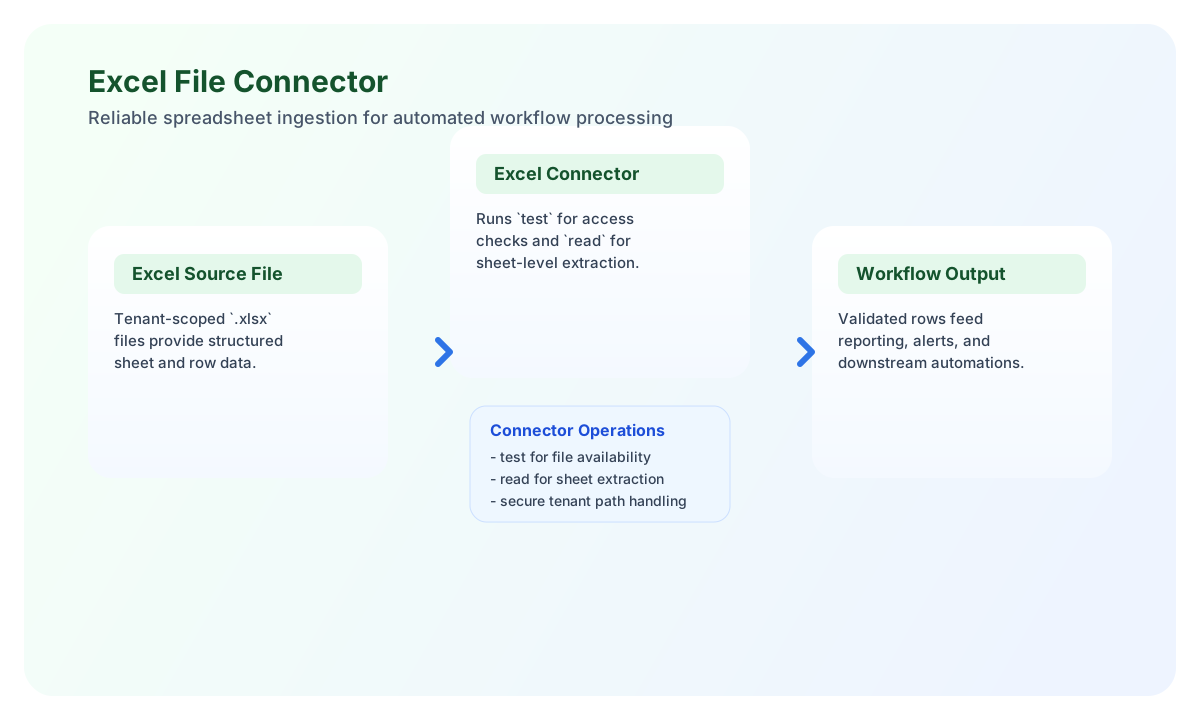
The Excel File connector lets your Tealfabric workflows read structured data from .xlsx files stored in tenant data directories. It is useful for ingesting scheduled reports, validating uploaded spreadsheets, and moving tabular business data into downstream automation steps.
Document information
| Field | Value |
|---|---|
| Canonical URL | /docs/04_connecting-systems/connectors/e/excel-file |
| Version (published date) | 2026-05-08 |
| Tags | connectors, reference, excel-file |
| Connector ID | excel-file-1.0.0 |
Configure file location and access
Set path to a relative tenant directory and filename to the target .xlsx file. The connector reads files from tenant-scoped storage and blocks directory traversal, which helps keep file access safe by default.
Use timeout_seconds for large worksheets and run test during setup to confirm the file exists before executing data-processing workflow steps. This prevents avoidable failures in downstream transformations.
Read worksheet data with read
Use read to parse one sheet or multiple sheets and return row data your workflow can transform, validate, or forward to another system. Add sheet_name, include_headers, start_row, and max_rows when you need predictable extraction windows for large files.
const baseUrl = "https://api.example.com/api/v1";
const tenantId = "<TENANT_ID>";
const apiKey = "<API_KEY>";

async function readExcelSheet(integrationId: string) {
  const response = await fetch(`${baseUrl}/integrations/${encodeURIComponent(integrationId)}/execute`, {
    method: "POST",
    headers: {
      "X-API-Key": apiKey,
      "X-Tenant-ID": tenantId,
      "Content-Type": "application/json",
    },
    body: JSON.stringify({
      operation: "read",
      path: "reports",
      filename: "monthly_sales.xlsx",
      sheet_name: "Sales",
      include_headers: true,
      start_row: 1,
      max_rows: 500
    }),
  });
  if (!response.ok) throw new Error(`Request failed: ${response.status}`);
  return response.json();
}
curl -X POST "https://api.example.com/api/v1/integrations/<ENTITY_ID>/execute" \
-H "X-API-Key: <API_KEY>" \
-H "X-Tenant-ID: <TENANT_ID>" \
-H "Content-Type: application/json" \
-d '{
"operation": "read",
"path": "reports",
"filename": "monthly_sales.xlsx",
"sheet_name": "Sales",
"include_headers": true,
"start_row": 1,
"max_rows": 500
}'
{
  "success": true,
  "data": {
    "file_path": "storage/tenantdata/<TENANT_ID>/reports/monthly_sales.xlsx",
    "sheet_count": 1,
    "row_count": 120,
    "sheets": {
      "Sales": {
        "headers": ["month", "region", "revenue"],
        "rows": [
          ["2026-01", "EMEA", 182000],
          ["2026-01", "NA", 241500]
        ],
        "row_count": 120
      }
    }
  }
}
Validate file availability with test
Use test before running read-heavy workflows to confirm path and filename values are correct and accessible. This operation is helpful in scheduled jobs where source files arrive from other systems and may be missing or delayed.
const baseUrl = "https://api.example.com/api/v1";
const tenantId = "<TENANT_ID>";
const apiKey = "<API_KEY>";

async function testExcelAccess(integrationId: string) {
  const response = await fetch(`${baseUrl}/integrations/${encodeURIComponent(integrationId)}/execute`, {
    method: "POST",
    headers: {
      "X-API-Key": apiKey,
      "X-Tenant-ID": tenantId,
      "Content-Type": "application/json",
    },
    body: JSON.stringify({
      operation: "test",
      path: "reports",
      filename: "monthly_sales.xlsx"
    }),
  });
  if (!response.ok) throw new Error(`Request failed: ${response.status}`);
  return response.json();
}
curl -X POST "https://api.example.com/api/v1/integrations/<ENTITY_ID>/execute" \
-H "X-API-Key: <API_KEY>" \
-H "X-Tenant-ID: <TENANT_ID>" \
-H "Content-Type: application/json" \
-d '{
"operation": "test",
"path": "reports",
"filename": "monthly_sales.xlsx"
}'
{
  "success": true,
  "message": "File exists and is accessible",
  "details": {
    "file_path": "storage/tenantdata/<TENANT_ID>/reports/monthly_sales.xlsx",
    "file_size": 84321,
    "sheet_count": 3
  }
}
Reliability and data quality guidance
Most failures come from incorrect relative paths, non-.xlsx files, or oversized sheets that exceed expected processing windows. Keep filenames explicit, enforce upload validation upstream, and use max_rows for controlled ingestion on large worksheets.
For stable production behavior, always run test before read in scheduled automations and handle unsuccessful connector responses before downstream processing. This reduces runtime surprises and protects data quality in reporting pipelines.