ZIP File Connector Guide
The ZIP file connector lets Tealfabric workflows create archives, inspect their contents, and extract files to tenant storage. It is useful for packaging export data, processing inbound bundles, and automating file distribution tasks.
Document information
| Field | Value |
|---|---|
| Canonical URL | /docs/04_connecting-systems/connectors/z/zip-file |
| Version (published date) | 2026-05-08 |
| Tags | connectors, reference, zip-file |
| Connector ID | zip-file-1.0.0 |
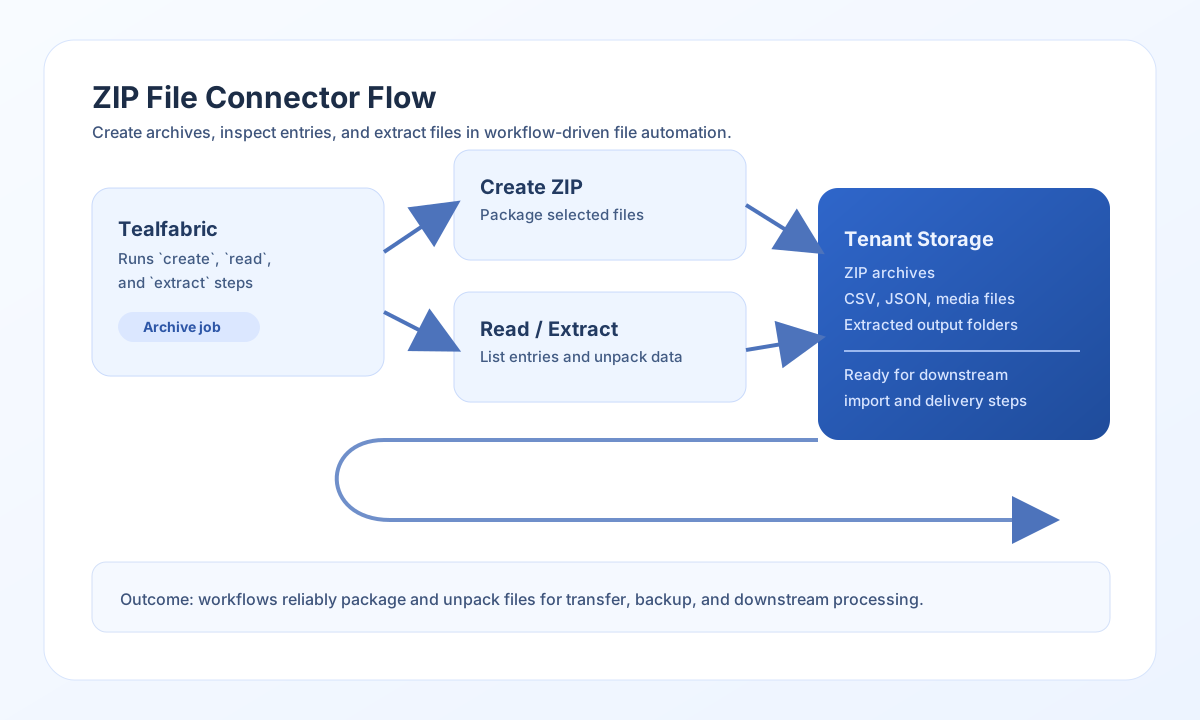
Configure archive target
Set filename to the archive you want to read or write, such as daily-export.zip. Use path when the archive is stored in a specific subdirectory under tenant storage (storage/tenantdata/{tenant_id}/).
filename is required. Relative path values must not contain ... All archive and extract paths are validated to stay inside tenant storage.
Before running production workflows, verify that source files exist and that destination paths are writable. This prevents partial archive operations and keeps file automations reliable.
Create archives with create
Use create to build a ZIP archive from one or more tenant-relative source file paths. Source paths are resolved under tenant storage; files outside tenant storage are skipped.
const baseUrl = "https://api.example.com/api/v1";
const tenantId = "<TENANT_ID>";
const apiKey = "<API_KEY>";

async function createArchive(integrationId: string) {
  const response = await fetch(`${baseUrl}/integrations/${encodeURIComponent(integrationId)}/execute`, {
    method: "POST",
    headers: {
      "X-API-Key": apiKey,
      "X-Tenant-ID": tenantId,
      "Content-Type": "application/json",
    },
    body: JSON.stringify({
      operation: "create",
      filename: "daily-export.zip",
      path: "exports/2026/05",
      files: ["orders.csv", "customers.csv"]
    }),
  });
  if (!response.ok) throw new Error(`Request failed: ${response.status}`);
  return response.json();
}
curl -X POST "https://api.example.com/api/v1/integrations/<ENTITY_ID>/execute" \
-H "X-API-Key: <API_KEY>" \
-H "X-Tenant-ID: <TENANT_ID>" \
-H "Content-Type: application/json" \
-d '{
"operation": "create",
"filename": "daily-export.zip",
"path": "exports/2026/05",
"files": ["orders.csv", "customers.csv"]
}'
{
  "success": true,
  "data": {
    "message": "ZIP archive created successfully",
    "file_count": 2,
    "file_path": "/path/to/storage/tenantdata/<TENANT_ID>/exports/2026/05/daily-export.zip",
    "file_size": 184320
  }
}
List archive contents with read or list
Use read (alias list) to inspect archive entries before extraction or validation. The response includes file and directory entries with name, size, compressed_size, modified, and index fields.
async function readArchive(integrationId: string) {
  const response = await fetch(`${baseUrl}/integrations/${encodeURIComponent(integrationId)}/execute`, {
    method: "POST",
    headers: {
      "X-API-Key": apiKey,
      "X-Tenant-ID": tenantId,
      "Content-Type": "application/json",
    },
    body: JSON.stringify({
      operation: "read",
      filename: "daily-export.zip",
      path: "exports/2026/05"
    }),
  });
  if (!response.ok) throw new Error(`Request failed: ${response.status}`);
  return response.json();
}
{
"success": true,
"data": {
"message": "ZIP contents listed successfully",
"file_count": 2,
"files": [
{
"name": "orders.csv",
"size": 92340,
"compressed_size": 18432,
"modified": "2026-05-08 14:30:00",
"index": 0
},
{
"name": "customers.csv",
"size": 91980,
"compressed_size": 18210,
"modified": "2026-05-08 14:30:01",
"index": 1
}
]
}
}
Extract files with extract
Use extract to unpack archive entries into tenant storage. Omit files to extract all entries. When extract_path is omitted, files are written to {archive_directory}/extracted.
{
  "operation": "extract",
  "filename": "daily-export.zip",
  "path": "exports/2026/05",
  "extract_path": "exports/2026/05/unpacked",
  "files": ["orders.csv"]
}
{
  "success": true,
  "data": {
    "message": "Files extracted successfully",
    "extracted_count": 1,
    "extract_path": "/path/to/storage/tenantdata/<TENANT_ID>/exports/2026/05/unpacked"
  }
}
Add files with add
Use add to append tenant files to an existing archive. When the archive does not exist, add creates a new archive (same behavior as create).
{
  "operation": "add",
  "filename": "daily-export.zip",
  "path": "exports/2026/05",
  "files": ["summary.csv"]
}
Delete entries with delete
Use delete to remove named entries from an existing archive.
{
  "operation": "delete",
  "filename": "daily-export.zip",
  "path": "exports/2026/05",
  "files": ["orders.csv"]
}
Test connectivity with test
Use test to verify the archive is readable (when present) or that the parent directory is writable (when the archive does not yet exist).
{
  "success": true,
  "data": {
    "message": "ZIP file connector test successful",
    "details": {
      "file_path": "/path/to/storage/tenantdata/<TENANT_ID>/exports/2026/05/daily-export.zip",
      "file_exists": true
    }
  }
}
Reliability guidance
Large archives can increase memory and processing time, especially during extraction and file deletion. Test archive size and entry count in staging before scheduling high-frequency production jobs.
For stable automations, validate file presence with read, then extract or mutate only required entries. This reduces unnecessary I/O and helps keep archive workflows predictable.