Set up tenant single sign-on
Document information
| Field | Value |
|---|---|
| Canonical URL | /docs/09_security-privacy-and-compliance/12_tenant-sso-setup |
| Version (published date) | 2026-08-26 |
| Tags | security, sso, organization-settings, authentication |
Summary
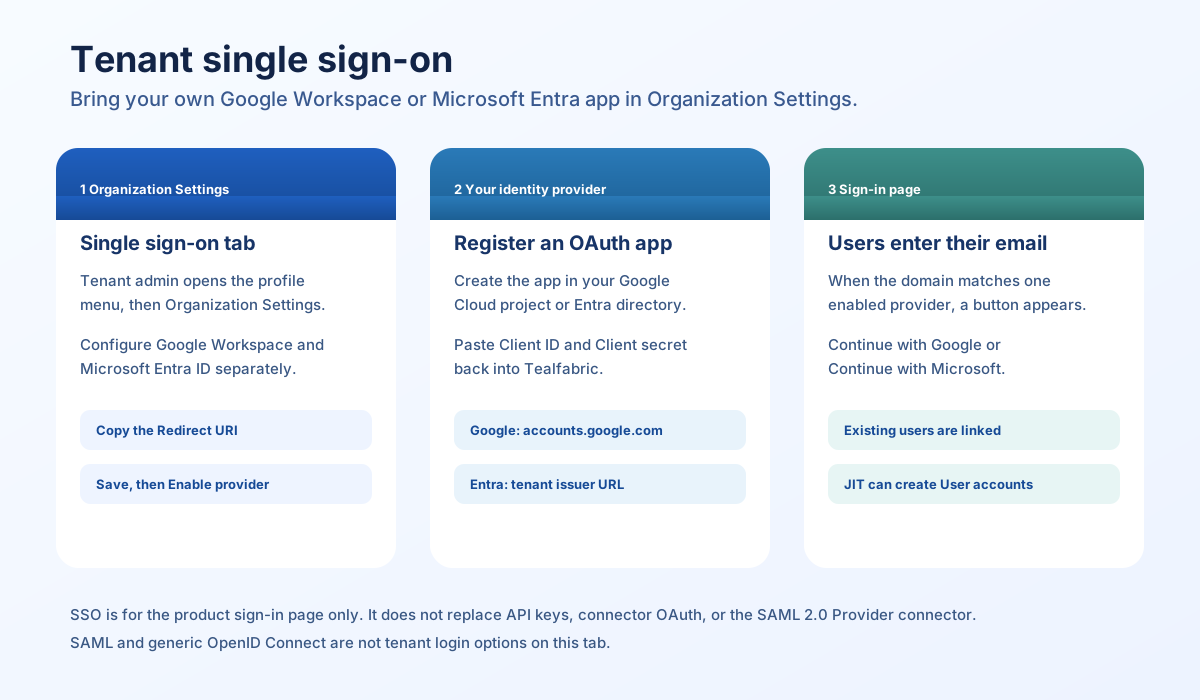
This page explains how a Tenant admin configures single sign-on (SSO) for their Tealfabric tenant from Organization Settings. Users then sign in on the product login page with Continue with Google or Continue with Microsoft after they enter a matching work email. SSO uses OpenID Connect (OIDC) with an OAuth app that you register in your own Google Workspace or Microsoft Entra directory.
What tenant SSO is
Each tenant brings its own identity provider (IdP) app. Tealfabric does not host a shared “Sign in with Google” or “Sign in with Microsoft” application for all customers. You create the OAuth client in your Google Cloud project or Entra directory, then paste the client ID and client secret into Tealfabric.
SSO applies to people signing in to the Tealfabric console for that tenant. It does not authenticate the admin tool, API keys, or connector integrations. The SAML 2.0 Provider connector is a workflow connector; it is not the tenant login setting described here. Generic OpenID Connect and SAML are not available on the Single sign-on tab.
Only Google Workspace and Microsoft Entra ID can be configured. Personal Google accounts on gmail.com and googlemail.com are rejected.
Who can configure it
Open Single sign-on only if your workspace role is Tenant admin (tenant_admin). The tab is also available to platform admin and super_admin accounts. Other roles see the message that SSO configuration is available to tenant administrators only.
A Tenant admin can change SSO only for their own tenant.
Open the Single sign-on tab
- Sign in to the Tealfabric console.
- Open the profile menu and choose Organization Settings.
- Select the Single sign-on tab.
The page shows two panels: Google Workspace and Microsoft Entra ID. Configure the provider your organization uses. You can save both, but sign-in discovery by email expects one enabled provider to match that email domain (see How users sign in).
Register the OAuth app in your identity provider
Tealfabric shows a Redirect URI in each panel. Copy that value into the OAuth app as an authorized redirect URI. The URI includes the provider name and your tenant id, in the form:
https://<your-tealfabric-host>/api/v1/auth/sso/callback?provider=<google|microsoft>&tenant_id=<your-tenant-id>
Use the exact string shown in the console. Do not omit the query parameters.
Create a web OAuth client in the IdP that owns your users:
| Provider panel | Where you register the app | Values Tealfabric needs |
|---|---|---|
| Google Workspace | Web OAuth client in Google Cloud Console → APIs & Services → Credentials | Client ID and Client secret that Google generates. Issuer used by Tealfabric is https://accounts.google.com (shown on the Google panel). |
| Microsoft Entra ID | App registration in your Entra directory | Client ID, Client secret, and Entra tenant issuer |
The sign-in request asks Google for scopes openid, profile, and email. Microsoft Entra also receives offline_access. Allow those scopes on the app if the IdP requires an explicit grant list. Do not add offline_access on the Google OAuth client; Google rejects it (invalid_scope).
The identity provider must return a verified email (email_verified true). Tealfabric will not complete login without it.
Choose the correct path - Use Google as the identity provider
Google Admin Security → Authentication → SSO with third-party IdP → Add OIDC profile asks for Client ID, Client secret, Issuer URL, and Change password URL. That form is for signing users into Google Workspace through an external identity provider.
Tealfabric tenant SSO is the opposite direction: people sign into Tealfabric using Google as the identity provider. Tealfabric is not an OpenID Connect issuer for Google Workspace. It does not publish a client ID, client secret, issuer URL, or change-password URL for that Admin profile. Leave that Google Admin form unused for Tealfabric login.
| Google Admin OIDC profile field | Tealfabric value |
|---|---|
| Client ID | None. Google Cloud generates this for the OAuth client; paste it into Tealfabric, not into the Admin OIDC profile. |
| Client secret | None. Google Cloud generates this; paste it into Tealfabric. |
| Issuer URL | None for Google Admin. Tealfabric uses Google’s issuer https://accounts.google.com when talking to Google. |
| Change password URL | None. Tealfabric does not host an IdP password-change page. SSO-only users change passwords in Google, not in Tealfabric User Settings. |
Create the Google Cloud OAuth client
- Open Google Cloud Console in a project your Workspace owns.
- Go to APIs & Services → Credentials.
- Create an OAuth client ID with application type Web application.
- Add the Tealfabric Redirect URI as an authorized redirect URI.
- Copy the Client ID and Client secret Google shows, then paste them into Organization Settings → Single sign-on → Google Workspace.
- Set Allowed email domains to your Workspace domain, then Test connection, Enable provider for users, and Save.
On the OAuth consent screen, Internal is the usual choice when only your Workspace users should sign in.
Microsoft Entra issuer
In Entra tenant issuer, enter your directory’s OIDC issuer, using the placeholder shape:
https://login.microsoftonline.com/{tenant-id}/v2.0
Replace {tenant-id} with your Entra tenant id (or verified domain form that still uses login.microsoftonline.com). Tealfabric rejects a Microsoft issuer that does not include login.microsoftonline.com.
Fill in the Tealfabric fields
Each panel has the same operational controls, plus the Microsoft issuer field.
| Field in the UI | What it does |
|---|---|
| Client ID | OAuth client id from your IdP app. Required to save a working provider. |
| Client secret | OAuth client secret. On later saves, leave blank to keep the stored secret. |
| Entra tenant issuer | Microsoft only. OIDC issuer URL for your Entra directory. |
| Allowed email domains | Comma-separated domains, stored in lowercase (for example contoso.com, contoso.co.uk). |
| JIT provisioning | Off — users must already exist, or Domain — auto-create users for allowed domains. |
| Trust IdP MFA (skip Tealfabric email OTP when IdP asserts MFA) | When selected (the default), Tealfabric does not prompt for its own email one-time token after SSO. |
| Enforce SSO (block password login for allowed domains) | When selected, password sign-in and self-service password registration are blocked for those domains. |
| Enable provider for users | When selected, this provider can be used on the sign-in page. |
Allowed email domains
List the corporate domains whose users should use this provider. The sign-in page looks up SSO by email domain. If the list is empty, typing an email will not show Continue with Google or Continue with Microsoft.
Keep domains unique across enabled providers. If more than one tenant’s enabled provider lists the same domain, the sign-in page shows no SSO button for that email. One tenant may enable both Google and Microsoft for the same domain; both buttons appear after the lookup returns.
Just-in-time (JIT) provisioning
- Off: the person must already have a user record in this tenant with the same email. The first successful SSO login links that account to the IdP identity.
- Domain: if no matching user exists, Tealfabric creates an active user with role User, no password, and
auth_sourceSSO. The display name is the local part of the email (the text before@). JIT does not create Tenant admin accounts. The email domain must be on the allowed list.
JIT still requires a verified IdP email and, for Google, a non-consumer domain.
Trust IdP MFA
Leave this selected unless you want Tealfabric email OTP to remain in the path. When it is cleared, Tealfabric still skips its email OTP if the IdP token includes MFA signals (amr values such as mfa, otp, hwk, or pin, or a non-empty acr other than 0). Users created by JIT are not sent through Tealfabric email OTP.
A user only sees Tealfabric email OTP after SSO if they already have Email One-time token enabled in User Settings, Trust IdP MFA is off, and the IdP did not assert MFA.
Enforce SSO
When Enforce SSO is on for an enabled provider:
- Password sign-in for an email on an allowed domain is rejected with a message to use SSO.
- Self-service registration with a password is rejected for those domains (
Password registration is disabled for this email domain. Sign in with SSO.).
Turn this on after you have confirmed that SSO login works for those domains.
Enable provider for users
Settings are stored when you click Save. Users only get an SSO button after Enable provider for users is selected and saved.
You cannot disable a provider while the tenant still has SSO-only users (accounts with auth_source SSO and no password). The save fails with SSO_DISABLE_BLOCKED. Give those users a password path, or keep SSO enabled.
Test and save
- Paste Client ID and Client secret (and the Entra issuer for Microsoft).
- Enter allowed domains.
- Choose JIT, Trust IdP MFA, and Enforce SSO as needed.
- Click Test connection. A success toast reports that discovery succeeded (issuer verified). The test uses the IdP OpenID configuration document. A client-credentials token call may fail for typical web apps; discovery success is still treated as OK.
- Select Enable provider for users when you are ready for people to sign in with SSO.
- Click Save.
How users sign in
On the product Sign in page:
- Enter the work email. After a short pause, Tealfabric looks up enabled providers for that domain.
- If enabled providers for a single tenant match, Continue with Google and/or Continue with Microsoft appears. The button label is shown only after that lookup returns; the page does not show a placeholder provider name.
- When SSO is available for that email, the password field, Sign in, and Forgot your password? are hidden. Click the provider button, authenticate at the IdP, and return to Tealfabric. The console completes the session (or sends the user to email OTP if Tealfabric MFA still applies).
If a password login is attempted while Enforce SSO is on, the API still rejects it (SSO_REQUIRED). The sign-in page normally hides the password field before that, as soon as the email lookup returns SSO.
Existing users in the same tenant with the same email are linked on first successful SSO login. Linked providers appear in User Settings under Linked sign-in providers. Accounts that only use SSO (auth_source SSO, no password) cannot change their password in Tealfabric; the password is managed at the identity provider.
If the email field is empty, the sign-in page can still list that tenant’s enabled providers when the login URL includes a tenant query parameter (?tenant=<tenant-id>).
Inactive users cannot complete SSO (SSO_USER_NOT_FOUND).
If sign-in fails
Failed SSO redirects to a Sign-in failed page with a message and an error code. Use the code with the table below.
| Error code | Typical cause |
|---|---|
SSO_PROVIDER_DISABLED | The provider is not enabled, or SSO is turned off on the platform. |
SSO_DOMAIN_NOT_ALLOWED | Email domain is not on the allowed list, JIT domain check failed, or a consumer Google address was used. |
SSO_USER_NOT_FOUND | JIT is off and no matching user exists, or the account is not active. |
SSO_TOKEN_INVALID | Missing or unverified email claim, IdP discovery/token failure, or the IdP returned an error. |
SSO_STATE_INVALID | The login round-trip expired or the callback state did not match. Start sign-in again. |
SSO_REQUIRED | Password login or password registration was blocked because Enforce SSO is on for that domain. |
SSO_DISABLE_BLOCKED | A Tenant admin tried to disable SSO while SSO-only users without passwords still exist. |
SSO_LOGIN_FAILED | Unspecified failure during callback. Retry, then confirm Client ID, secret, redirect URI, and issuer. |
Also check:
- The Redirect URI in the IdP app matches the console, including
providerandtenant_id. - Enable provider for users is selected.
- Allowed domains include the user’s domain, and that domain is not listed on another tenant’s enabled provider.
- For Microsoft, the issuer uses
login.microsoftonline.com.
Related documentation
- Workspace user roles
- User guide
- Security checklist
- SAML 2.0 Provider connector (workflow connector, not tenant login)
Final recommendation
Configure SSO as a Tenant admin in Organization Settings → Single sign-on, using an OAuth app that you own in Google Workspace or Microsoft Entra ID. List allowed domains so the sign-in page can offer the matching provider button after lookup, test the connection, then enable the provider. Turn on Enforce SSO only after a successful login. Keep API keys, connector OAuth, and the SAML connector on their own paths; they are not substitutes for this tenant login setting.