Workspace user roles
Document information
| Field | Value |
|---|---|
| Canonical URL | /docs/09_security-privacy-and-compliance/15_user-roles |
| Version (published date) | 2026-08-21 |
| Tags | security, access-control, user-management |
Summary
This page explains the workspace roles you can assign in User Management: Tenant admin, User, Viewer, and Webapp user. It describes what each role can do in the Tealfabric console and when to use it. Assign the smallest role that still lets the person complete their work.
Why roles matter
Every person who signs in to a workspace receives one role. That role controls whether they can view records, change data, run automations, publish WebApps, or administer other users. Clear role assignment reduces accidental edits, limits who can change security settings, and makes access reviews easier.
Roles apply inside the selected workspace. A Tenant admin in one workspace does not automatically become an administrator in another workspace they can open. If the selected workspace has no stored role for that person, access stays read-only. The role printed on the sign-in token does not replace the selected-workspace role. When you add or edit a user, choose the role that matches the job, then review it if their responsibilities change.
Signing in opens the operational workspace: Home, Search, Work, Data, Dashboards, Applications, Organization, Activity, and the Operations Assistant. Tenant admins can switch to the Tenant Admin Console for user administration, organization settings, integrations, DataPool schemas, process design, and WebApp publishing. The Platform Admin Console is a separate application and is not that switch.
For granting access to people who already have a Tealfabric login, linked workspaces, and join requests, see Manage workspace access and linked workspaces.
Roles you can assign
Tenant admins assign roles from User Management when they add or edit a user. The Role menu shows these four workspace roles.
| Role in the UI | Identifier | Typical use |
|---|---|---|
| Tenant admin | tenant_admin | People who administer the workspace |
| User | user | People who create records and run day-to-day work |
| Viewer | viewer | People who need read-only access |
| Webapp user | webapp_user | Service accounts used by published WebApps |
What each role can do
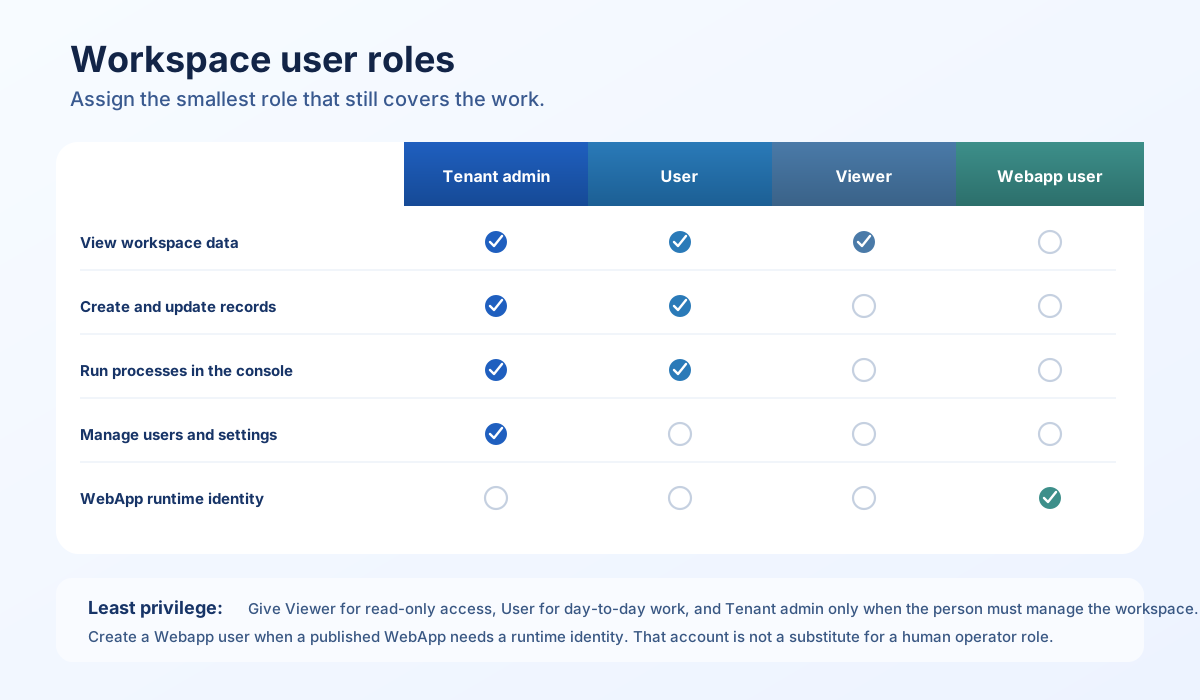
The table below is a practical map of console capabilities. A filled capability means the role can perform that work in the selected workspace. Webapp user is included because you create it in the same Role menu, even though it is not intended as a daily login for a person.
| Capability | Tenant admin | User | Viewer | Webapp user |
|---|---|---|---|---|
| Sign in and view workspace data | Yes | Yes | Yes | Not for daily console use |
| Create and update entities, products, contracts, and documents | Yes | Yes | No | No |
| Delete catalog items and integrations | Yes | No | No | No |
| Run processes from the console | Yes | Yes | No | No |
| Create, publish, and configure WebApps | Yes | No | No | Runtime identity only |
| Open Workspace Editor | Yes | No | No | No |
| Manage users, roles, and API keys | Yes | No | No | No |
| Organization settings, SSO, and billing | Yes | No | No | No |
| Chat with Trace AI and platform agents | Yes | No | No | No |
| Chat with the Operations Assistant | Yes | Yes | Yes | No |
Tenant admin
Use Tenant admin for people who own workspace administration. This role can add and edit users, including other Tenant admins, and can assign User, Viewer, and Webapp user. It can also change organization settings, configure SSO, review billing, open Workspace Editor, manage WebApps, and delete records that operators cannot remove.
Keep the number of Tenant admins small. Anyone with this role can change who else has access, so treat it as a privileged account. Prefer User for people who build processes or maintain catalog data but should not administer accounts.
User
Use User for operators who do the daily work of the workspace. This role can create and update products, contracts, entities, and integrations, test connections, and run processes. It cannot delete integrations or catalog items, cannot publish WebApps, and cannot open User Management, organization settings, billing, or Workspace Editor.
This is the default role for most people who sign in to do production work. If someone only needs to inspect data, assign Viewer instead.
Viewer
Use Viewer when someone must see workspace information without changing it. This role can sign in and browse records, dashboards, and monitoring views that their membership allows. It cannot create, update, or delete records, cannot run processes from the console, and cannot administer users or settings.
Viewer is the right choice for auditors, stakeholders, and anyone who should observe operations without a write path. If a Viewer later needs to run processes or maintain records, change their role to User.
Webapp user
Use Webapp user for a service account, not for a person who works in the console each day. Published WebApps run ProcessFlow as the account you select in WebApp settings (webapp_user_id). Create that account in User Management with the Webapp user role, then attach it to the WebApp.
Do not assign Webapp user to a human operator. If the person needs to use the console, give them Viewer, User, or Tenant admin. If a WebApp has no Webapp user assigned, create one before you publish; the WebApp settings panel only lists accounts with this role.
How to assign a role
- Open
User Management. - Choose Add User, or open an existing user and edit them.
- Set Role to Tenant admin, User, Viewer, or Webapp user.
- Save. The new role applies on the user's next signed-in session in that workspace.
When you add a user, start with User unless they need administration or a WebApp runtime identity. Review privileged accounts on a schedule, and move people to Viewer when they no longer need write access.
Related documentation
- User guide
- Set up tenant single sign-on
- API key security best practices
- Security checklist
- WebApps user guide
Final recommendation
Treat role assignment as a security control, not a convenience label. Give Tenant admin only to people who must administer the workspace, User to people who operate it, Viewer to people who only need to look, and Webapp user to the service accounts behind published apps. Reviewing these assignments regularly keeps access aligned with actual responsibilities.