User Guide
Document information
| Field | Value |
|---|---|
| Canonical URL | /docs/01_introduction-and-concepts/05_user-guide |
| Version (published date) | 2026-05-13 |
| Tags | getting-started, product, guides |
Summary
This guide explains the current Tealfabric user interface and how to use the visible features in day-to-day work. It focuses on what users can actually see in navigation, page layouts, and action menus, and it introduces the core platform vocabulary used elsewhere in the Library. Use this page as your practical map for onboarding, daily operations, and quick troubleshooting.
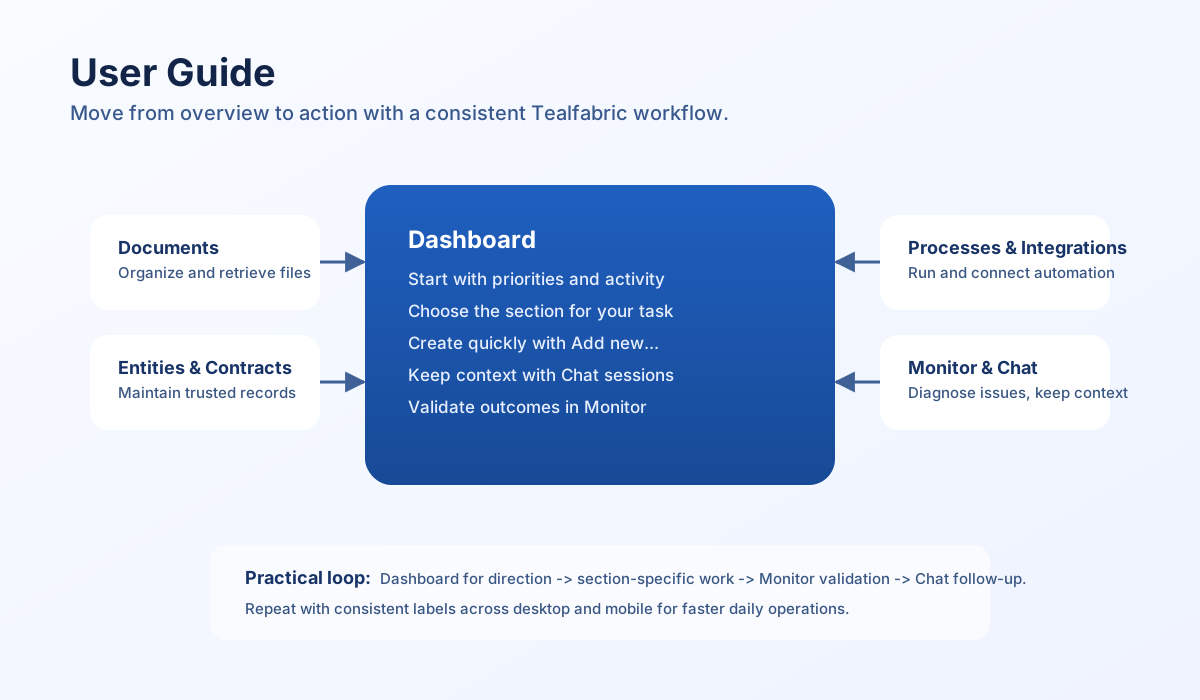
Welcome to Tealfabric
Tealfabric provides a workspace for managing business data, automation, integrations, and user-facing applications in one place. The interface is organized around feature areas so teams can move from planning to execution without switching tools constantly. This guide helps you understand the current UI structure and complete common tasks with confidence.
Platform mental model
Tealfabric brings business logic, orchestration, and system connectivity together in one environment. A tenant defines the boundary for your organization. ProcessFlow is the automation logic that reacts to events and drives outcomes. Steps break that logic into manageable units, triggers decide when flows begin, and connectors let flows interact with external services such as CRMs, email providers, and databases. WebApps provide user-facing surfaces connected to your workflow logic, and sandbox execution runs custom step code with guardrails. These terms appear throughout the documentation; connecting them to the navigation sections below makes later reading easier.
Getting started
When your administrator has created your account, open your organization-specific Tealfabric URL and sign in. Use email and password, or—if your tenant enabled single sign-on—enter your work email and choose Continue with Google or Continue with Microsoft. After login, you arrive at the Dashboard, where you can see high-priority activity and jump into main feature areas. If login fails, confirm your URL and email first, then contact your administrator if access issues continue. Tenant admins configure SSO in Organization Settings; see Set up tenant single sign-on.
Understanding the interface
Tealfabric uses a consistent application shell across desktop and mobile. A top header provides quick access to profile actions and key links, while the left navigation controls your current workspace area. The center content panel updates based on the selected section and contains lists, forms, tabs, editors, and detail views.
On desktop, the main navigation is always visible in the sidebar. On mobile, the same navigation appears in a slide-out menu so you can access all sections without changing behavior. This consistency lets you use the same mental model regardless of device.
Main navigation
The left navigation is grouped into Global and Workspace sections so users can separate account-level actions from operational work. The labels below match the UI as currently displayed.
Global section
DashboardChat with AgentsPlatformsUser Management
Workspace section
Product CategoriesProduct InformationEntitiesContractsDocumentsIntegrationsDataPoolProcessesWebAppsEditorMonitor
In addition to these sections, the profile menu includes Organization Settings, User Settings, Notifications, and Chat History. This arrangement helps you keep administrative tasks separate from core production workflows.
Quick create menu
The Add new... menu provides direct entry points for common create actions. Instead of navigating into each manager first, you can start creation immediately for entities such as products, integrations, processes, and users. This shortcut reduces navigation overhead and is useful when you already know what artifact you need to create.
Section guide by feature
Dashboard
The Dashboard is your operational snapshot. It highlights priority items such as failed process runs, unread notifications, and chat todo items, and it includes quick links to high-traffic sections. Start here when you need a status check before taking action in detail pages.
Chat with Agents
The chat experience is a full page under Chat with Agents, not a legacy sidebar-only panel. Users can select agents, send messages, upload attachments, view progress in the console, and manage message queues. The Agent sessions... submenu in navigation shows active sessions, supports New Agent, and links to the full Chat History page.
When switching sessions during an active response, the UI asks for confirmation before interrupting in-flight and queued work. This protects users from accidental context loss while still enabling explicit session changes.
Platforms
Platforms is the main area for managing platform records and their lifecycle. Typical actions include creating, editing, filtering, and reviewing status details. Use this section when working on strategic or structural platform-level data.
User Management
User Management is where tenant users and related access workflows are handled. The page supports list and management operations appropriate to your permissions. Use this section for onboarding, updates, and account governance tasks. For what Tenant admin, User, Viewer, and Webapp user can do, see Workspace user roles.
Product Categories and Product Information
These two sections split product organization from product detail management. Product Categories handles classification structure, while Product Information focuses on product records and their attributes. Keeping these areas separate improves clarity when maintaining larger product datasets.
Entities
Entities manages core business entities and related metadata. Users can create and edit entity records, review details, and work with entity relationships through the available UI flows. Keep entity information current to maintain reliable downstream reporting and automation behavior.
Contracts
The Contracts area is used for contract record management and associated workflows. Users can browse, create, update, and maintain contract information based on role permissions. Use clear status and naming conventions to keep contract operations searchable and auditable.
Documents
Documents is the visible file and document management section in the current UI. Users can upload files, organize records, and manage document-related actions from this area. If you previously used Files terminology, treat Documents as the active equivalent in current navigation.
Integrations
Integrations is the connection layer for external systems. Users can view configured connectors, inspect status, and update integration settings where permitted. This section is central when diagnosing data flow boundaries between Tealfabric and external services.
DataPool
DataPool provides schema and data-structure management for tenant datasets. Use it when preparing structured data for processes, webapps, or analytics workflows. Strong schema discipline here improves reliability across dependent features.
Processes
Processes is the automation workspace for process definitions and execution-related operations. Users can review process records and move into related flows such as editing and monitoring based on permissions. This section works closely with Integrations, DataPool, WebApps, and Monitor.
WebApps
WebApps manages tenant-facing web applications. Visible functionality includes listing, creation, searching, publication state actions, and access to version and execution views. Use this section to maintain release quality and trace application behavior over time.
Editor
Editor is the built-in workspace editor for file-based and scripted work. Users can create files and folders, manage tabs, save active or all files, and use preview behavior where available. It is intended for users who need direct editing workflows inside Tealfabric.
Monitor
Monitor is the operational observability area with tabs for logs and queue-related views. It supports filtering, search, sorting, and pagination to investigate runtime activity efficiently. Use Monitor first when you need to understand failures, bottlenecks, or execution timelines.
Chat sessions and history workflow
Tealfabric chat supports session-based continuity. Users can return to previous sessions from navigation, start a fresh New Agent session, or open the full Chat History page for broader management. This model keeps conversational context organized by session and improves long-running collaboration with agents.
If a response is currently streaming, session switching triggers an interrupt confirmation. Accepting interruption stops active processing and clears queued messages before the new session is loaded. This behavior is intentional and helps prevent accidental mixed-context outputs.
Settings, notifications, and profile actions
The profile and utility menus provide access to user and organization configuration surfaces. Organization Settings covers tenant-level information, the Single sign-on tab, subscription, billing, and usage. User Settings covers account-level preferences, profile details, and linked sign-in providers when SSO is in use. Notifications and Chat History give direct access to high-frequency follow-up workflows without requiring deep navigation.
Common task patterns
Create a new item quickly
Use Add new... in the sidebar and choose the artifact you want to create, such as Entity, Process, or WebApp. Complete the required fields in the opened form and save. This is the fastest route when you already know the object type.
Investigate an operational issue
Start in Monitor to inspect logs and queue state. Then move to the relevant source section (Processes, Integrations, or WebApps) to apply corrections. This sequence reduces guesswork and keeps debugging evidence-driven.
Continue previous AI work
Open Chat with Agents, expand Agent sessions..., and select the relevant session. If needed, use Chat History for broader filtering and management. This preserves context and avoids restarting complex conversations.
Manage documents for active work
Use Documents to upload or locate files required by your workflow. Keep naming and structure consistent so files are easy to retrieve from related features. Good document hygiene improves collaboration and reduces duplication.
Mobile usage
The interface is responsive and keeps feature behavior aligned between desktop and mobile. On smaller screens, navigation and overlays adapt to touch-friendly interaction while preserving section structure and labels. You can use the same workflows, but with condensed layout and menu access patterns.
Troubleshooting
If a feature is not where you expect it, first confirm the exact navigation label used in the current UI because some legacy terms have changed. For example, use Documents instead of older Files terminology, and use the dedicated Chat with Agents page instead of expecting a permanent sidebar chat panel. If the UI still appears inconsistent, refresh the page and verify your role permissions with an administrator.
For runtime or execution issues, check Monitor before making changes. For account and access issues, use User Management, Organization Settings, or administrator support paths. Following these first checks usually resolves navigation confusion and reduces time to recovery.
Related documentation
When you move from daily UI work into design and integration, continue with these pillars:
- Automations and ProcessFlow — workflow design, triggers, and runtime behavior
- Writing step code — step implementation and recipes
- Connecting systems — integrations and connector architecture
- Set up tenant single sign-on — Organization Settings SSO for Google Workspace and Microsoft Entra ID
- Workspace user roles — Tenant admin, User, Viewer, and Webapp user
For a structured index of Library sections and deep links, see Navigating the Tealfabric Library.
Final recommendations
Start from the visible navigation names and rely on section-specific workflows rather than legacy terminology. Use Dashboard for prioritization, Monitor for diagnostics, and Chat session tools for context continuity. If something appears missing or mismatched, report it through your support channel so documentation and UI can stay aligned.